X
This article was co-authored by wikiHow Staff. Our trained team of editors and researchers validate articles for accuracy and comprehensiveness. wikiHow's Content Management Team carefully monitors the work from our editorial staff to ensure that each article is backed by trusted research and meets our high quality standards.
This article has been viewed 6,393 times.
Learn more...
This wikiHow teaches you how to update your games on Steam. Since all you need is the Steam client to download and update games, this will work on both a PC or Mac.
Steps
-
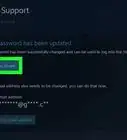
1Open the Steam app and sign in. The Steam icon looks like part of a gear on a blue background. On a Mac, it’ll be in your Applications folder. On a PC it should be pinned to the Start Menu.
-
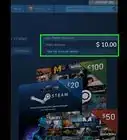
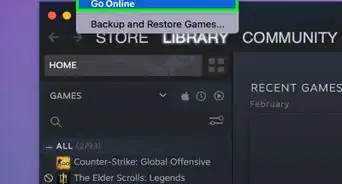
2Click on Library. This will open a list of your installed games.Advertisement
-
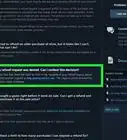
3Click on a game that says “Update Queued” next to the title. This means that particular has a pending update to install. If all of your games are up to date, you won't see this option.
-
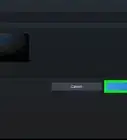
4Click Play to update the game. Before the game launches, a window will come up with a loading bar to show the update’s progress.
- Click View Updates or Play Game after the download is done. You can also just close steam after you install the update.
- On a Windows PC you’ll get a pop-up notifying you that the update has been downloaded. Click Agree to allow the game to finish updating.
Advertisement


About This Article

wikiHow Staff
wikiHow Staff Writer
This article was co-authored by wikiHow Staff. Our trained team of editors and researchers validate articles for accuracy and comprehensiveness. wikiHow's Content Management Team carefully monitors the work from our editorial staff to ensure that each article is backed by trusted research and meets our high quality standards. This article has been viewed 6,393 times.
Co-authors: 3
Updated: February 5, 2020
Views: 6,393
Categories: Steam Games
Article SummaryX
1. Open and log into Steam.
2. Click on Library.
3. Select a game that has “Update Queued” next to it.
4. Click Play to start updating the game.
Did this summary help you?
Advertisement