X
This article was written by Nicole Levine, MFA. Nicole Levine is a Technology Writer and Editor for wikiHow. She has more than 20 years of experience creating technical documentation and leading support teams at major web hosting and software companies. Nicole also holds an MFA in Creative Writing from Portland State University and teaches composition, fiction-writing, and zine-making at various institutions.
The wikiHow Tech Team also followed the article's instructions and verified that they work.
This article has been viewed 6,191 times.
This wikiHow teaches you how to stop sharing a file or folder in your Google Drive when you’re using a computer.
Steps
-
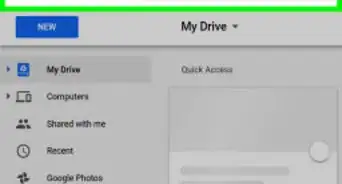
1Go to https://drive.google.com in a web browser. If you don’t see the contents of your drive, click Go to Google Drive to sign in now.
-
2Right-click the file or folder you want to stop sharing. A context menu will appear.
-
3Click Share…. It’s the menu option with an outline of a person’s head and shoulders with a "+."
-
4Click Advanced. It’s at the bottom-right corner of the "Share with others" window.
-
5Click Change…. It’s next to the current permission setting under the “Who has access” header.
-
6Select Off - Specific People.
-
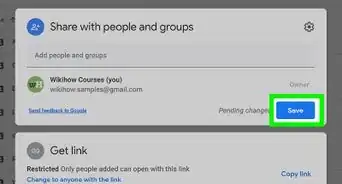
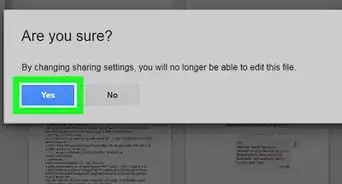
7Click Save. You have disabled the sharing link, however, you’ll still need to remove users who’ve accessed the file.
-
8Click X next to each user you want to remove. If no users appear, you are finished. Otherwise, be sure to remove each user listed to completely unshared the file or folder.
-
9Click Save changes. It’s the blue button near the bottom-left corner of the window.
-
10Click Done. The file or folder is no longer shared.




About This Article

Nicole Levine, MFA
Tech Specialist
This article was written by Nicole Levine, MFA. Nicole Levine is a Technology Writer and Editor for wikiHow. She has more than 20 years of experience creating technical documentation and leading support teams at major web hosting and software companies. Nicole also holds an MFA in Creative Writing from Portland State University and teaches composition, fiction-writing, and zine-making at various institutions. This article has been viewed 6,191 times.
How helpful is this?
Co-authors: 2
Updated: May 25, 2021
Views: 6,191
Categories: Google Drive