X
This article was written by Jack Lloyd. Jack Lloyd is a Technology Writer and Editor for wikiHow. He has over two years of experience writing and editing technology-related articles. He is technology enthusiast and an English teacher.
This article has been viewed 2,049 times.
This wikiHow teaches you how to unpair your Apple Watch from an iPhone. Keep in mind that unpairing your Apple Watch also prompts the Apple Watch to erase all of its content.
Steps
-
1Open the Watch app on your iPhone. Tap the Watch app icon, which resembles a black-and-white side view of an Apple Watch.
-
2Tap the My Watch tab. It's in the bottom-left corner of the screen. This will open a page listing your Apple Watch(es).Advertisement
-
3Select your Apple Watch. Tap the Apple Watch which you want to unpair. You'll usually find it near the top of the page.
- If you have multiple Apple Watches paired with your iPhone, you may have to scroll down to find the correct one.
-
4Tap ⓘ. It's to the right of your Apple Watch's name. Doing so opens the Apple Watch's pairing settings.
-
5Tap Unpair Apple Watch. This red-text option is near the middle of the page.
-
6Tap Unpair Name's Apple Watch when prompted. It's at the bottom of the screen. Your Apple Watch will begin unpairing from your iPhone.
- "Name's" will be replaced with your name (e.g., Unpair Sarah's Apple Watch).
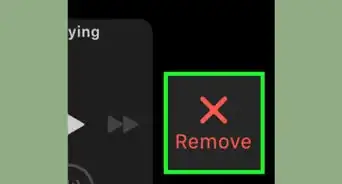
- If your Apple Watch is on your cellular plan, you'll have to tap Keep or Remove when prompted to keep or remove the Apple Watch from your cellular plan.[1]
-
7Wait for your Apple Watch to finish unpairing. This process can take several minutes. Once the Apple Watch finishes unpairing, you can set up your Apple Watch for another iPhone if you like.
- If your Apple Watch had an Activation Lock on it, you'll have to enter your Apple ID password at some point during the unpairing process.
Advertisement


Warnings
- Unpairing an Apple Watch from an iPhone causes the Apple Watch to erase all of its settings and content.Thanks!
Advertisement


References
About This Article
Advertisement