X
wikiHow is a “wiki,” similar to Wikipedia, which means that many of our articles are co-written by multiple authors. To create this article, volunteer authors worked to edit and improve it over time.
This article has been viewed 68,216 times.
Learn more...
If your mouse pad is locked, you may waste a lot of time searching for a solution without a "visible" button meant to lock your mouse pad. Here are the steps you need to take to fix this problem.
Steps
-
1Do not try to press random buttons, it will just mess your computer up.
-
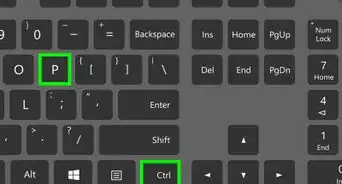
2HIT CONTROL ALT DELETE (all at the same time).Advertisement
-
3Hit Enter.
-
4The computer will log you off.
-
5If you have your fingerprint set up to log in with swipe your finger, or else try entering your password.
-
6When you log back in you should have the ability to use your mouse pad again.Advertisement


Community Q&A
-
QuestionHow do I unlock the mouse pad on my laptop?
 Community AnswerTry tapping the little button like thing on the top left corner of the mouse pad.
 -
QuestionWhat if it locks up over and over?
 Community AnswerIt will lock you out for a long time if you just keep trying. Relax, wait about 10 minutes, and try to find your password.
 -
QuestionWhat if it is showing a blue screen?
 Dave simbolynCommunity AnswerYou might have a problem with some important files. Check to see if you can restore files or reset the computer completely.
 -
QuestionWhat should I do if I want to unlock a laptop mouse?
 DJnRFCommunity AnswerCheck the device manager in your OS to see if there is a problem with the mouse and how to adjuxt or correct, and also in Control Panel for the mouse to see if it shows.
 -
QuestionHow do I unlock the mouse on a laptop?Community AnswerNext to the touchpad, you should see a small LED (orange or blue). This light is your touchpad's sensor. Simply double tap on the sensor to enable your touchpad.
-
QuestionHow do I unlock the cursor on an HP Pavilion laptop?
 Community AnswerLock or unlock HP Touchpad. Next to the touchpad, you should see a small LED (orange or blue). This light is your touchpad's sensor. Simply double tap on the sensor to enable your touchpad.



About This Article
Advertisement