Have you lost or forgotten your SQL Server login? Are you unable to access your SQL Server account? If you are an individual user in the SQL Server, you can contact your SA (system administrator) to reset a new password for you. But if you the SA and have lost the password, it could be a difficult situation for you. You need to change or reset the password to unlock the SQL Server. Some solutions are given below, through which you can change the SQL Server SA password.

Method 1
Method 1 of 4:
Using the Command Prompt

  1. 1
    Press Win+R and type cmd. Hit enter. The Command Prompt will be appeared.
  2. 2
    Run Osql –S ComputerName –E command and hit enter.
  3. 3
    Now run EXEC sp_password NULL, 'NewPassword', 'sa' and hit enter.
  4. 4
    Type Go to make it done. Now you can log into your SQL Server by using the new password.

Method 2
Method 2 of 4:
Using SQL Management Studio

The SQL Server password can be changed in Management Studio by using Windows Authentication.

  1. 1
    Log into your SQL Server by using Windows Authentication. In the Management Studio.
  2. 2
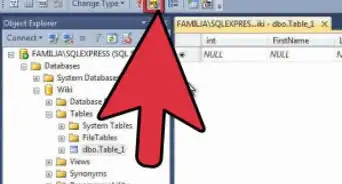
    Expand Object Explorer and open the Security folder.
  3. 3
    Now expand the Logins folder, right click on SA account and click on Properties.
  4. 4
    Type a new SA password and confirm it. Then click on OK.

About This Article

wikiHow is a “wiki,” similar to Wikipedia, which means that many of our articles are co-written by multiple authors. To create this article, volunteer authors worked to edit and improve it over time. This article has been viewed 20,167 times.
How helpful is this?
Co-authors: 3
Updated: October 21, 2021
Views: 20,167
Categories: Software