This article was written by Darlene Antonelli, MA. Darlene Antonelli is a Technology Writer and Editor for wikiHow. Darlene has experience teaching college courses, writing technology-related articles, and working hands-on in the technology field. She earned an MA in Writing from Rowan University in 2012 and wrote her thesis on online communities and the personalities curated in such communities.
This article has been viewed 1,737 times.
Have Twitch on your iPhone or iPad and decide you don’t want it anymore? This wikiHow teaches you how to uninstall Twitch from your iPhone or iPad by either deleting or offloading the app. Either method will free space on your iPhone or iPad, but deleting Twitch will remove any information associated with the app permanently.
Steps
Method 1
Method 1 of 2:Deleting Twitch
-
1Tap and hold the Twitch icon on the home screen. This app icon looks like a white chat bubble on a purple background. The icons will start jiggling.
- Deleting Twitch will delete all your information, like your login information.
-
2Lift your finger from the screen. An “x” will appear in the upper left corner of the Twitch app icon.
-
3Tap the “x”. You’ll have to confirm this action.
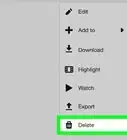
- Tap “Delete” to delete the app and all its information.


Method 2
Method 2 of 2:Offloading Twitch
-
1
-
2Tap General. You might need to scroll down to see this menu.
-
3Tap iPhone Storage. You might see “iPad Storage” instead.
-
4Tap Twitch. You might need to scroll down to find this.
-
5Tap Offload App. You’ll need to confirm this action.
- The Twitch app is uninstalled from your phone, but all your information is saved. You’ll see the app icon still on your home screen with a cloud next to the name.



About This Article

1. Tap and hold the Twitch app icon.
2. Lift your finger from the screen when the apps jiggle.
3. Tap the X icon in the upper left corner of the app icon.