X
This article was written by Nicole Levine, MFA. Nicole Levine is a Technology Writer and Editor for wikiHow. She has more than 20 years of experience creating technical documentation and leading support teams at major web hosting and software companies. Nicole also holds an MFA in Creative Writing from Portland State University and teaches composition, fiction-writing, and zine-making at various institutions.
This article has been viewed 43,540 times.
This wikiHow teaches you how to force Snapchat to take photos in night mode when you’re on an iPhone or iPad.
Steps
-
1Open Snapchat. It’s the yellow icon with a white ghost typically found on the home screen. This opens the Snapchat camera.
-
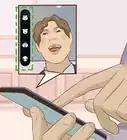
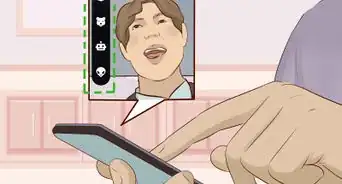
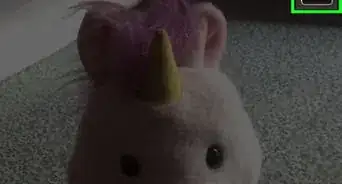
2Cover the lens with something dark. Place your hand in front of the lens, use fabric, or a dark sheet of paper to block out the light. Once the camera thinks it’s dark, a white moon icon will appear at the top of the screen.
- If it’s actually dark in your location, Snapchat will automatically enter night mode without you having to cover the lens.
Advertisement -
3Snap a photo quickly. You’ll only have a few seconds to do this, as Snapchat disables night mode in good lighting.
- You’ll know that the Snapchat is back in regular mode when the moon disappears from the camera screen.
Advertisement




About This Article

Nicole Levine, MFA
Tech Specialist
This article was written by Nicole Levine, MFA. Nicole Levine is a Technology Writer and Editor for wikiHow. She has more than 20 years of experience creating technical documentation and leading support teams at major web hosting and software companies. Nicole also holds an MFA in Creative Writing from Portland State University and teaches composition, fiction-writing, and zine-making at various institutions. This article has been viewed 43,540 times.
How helpful is this?
Co-authors: 3
Updated: May 15, 2018
Views: 43,540
Categories: Snapchat
Article SummaryX
1. Open Snapchat.
2. Cover the lens until you see a moon icon.
3. Quickly take a photo.
Did this summary help you?
Advertisement