This article was written by Nicole Levine, MFA. Nicole Levine is a Technology Writer and Editor for wikiHow. She has more than 20 years of experience creating technical documentation and leading support teams at major web hosting and software companies. Nicole also holds an MFA in Creative Writing from Portland State University and teaches composition, fiction-writing, and zine-making at various institutions.
The wikiHow Tech Team also followed the article's instructions and verified that they work.
This article has been viewed 5,379 times.
This wikiHow teaches you how to remove the message preview window (called the Reading Pane) from Outlook 2016.
Steps
-
1Open Outlook. You’ll find it in your Windows menu. Click the Windows logo at the bottom-left corner of the screen, expand the Microsoft Office menu, then select Outlook.
-
2Click the View menu. It’s at the top of the screen.Advertisement
-
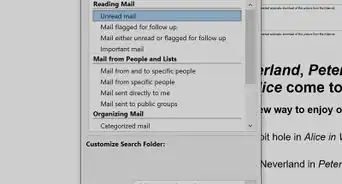
3Click Reading Pane. It’s in the panel at the top of Outlook, near the center. It has an icon that looks like a tiny version of Outlook.
-
4Click Off. It’s the third option in the menu. The list of messages should now extend all the way to the right side of the screen.
- Double-click a message in your inbox to read it.
Advertisement


About This Article

1. Open Outlook.
2. Click View.
3. Click Reading Pane.
4. Click Off.