wikiHow is a “wiki,” similar to Wikipedia, which means that many of our articles are co-written by multiple authors. To create this article, 10 people, some anonymous, worked to edit and improve it over time.
The wikiHow Tech Team also followed the article's instructions and verified that they work.
This article has been viewed 65,833 times.
Learn more...
Google stores your web and app activities to make searches faster and get customised experiences in Google products like Search and Maps. But there is a problem! You are concerned that someone knows your email and passwords, and if they do then they can easily find your all activities on Google and its other products. Do you want to stop this? Google allows you to pause this activity storing. Learn how to do it.
Steps
Method 1
Method 1 of 3:Using an Android Device
-
1Open the “Settings” app. It’s the gear icon typically found on the home screen or in the app drawer. You can quickly access the settings by swiping down the notification panel and tapping on the tiny gear icon.
-
2Tap on “Google.” Scroll through the settings panel to find the “Google” option.Advertisement
-
3Tap on the Manage your Google Account option. This will be located under your Google account name.
- If you want to switch your account, tap on the v icon next to your current Gmail address and select an account from the pop-up menu.
-
4Tap on the Data & personalization title. You can see this option right after the “Personal info” title.
-
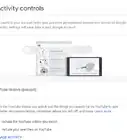
5Open the “Web & App Activity” settings. Scroll to the “History settings” header and select Web & App Activity option from there. The activity controls panel will show up.
-
6
-
7Tap on the Pause button. Scroll to the end of the pop-up page and tap on the “Pause” button to confirm your action. Hit the “OK” button from the upcoming page to finish your steps. That's it!Advertisement


Method 2
Method 2 of 3:Using an iPhone or iPad
-
1Open a web browser on your device. Open your app library and launch a web browser from there.
-
2Go to https://myaccount.google.com/activitycontrols on your browser. You have to sign in with your Google account to continue.
-
3Locate the “Web & App Activity” option. Toggle off the blue switch, next to “Web & App Activity.” The confirmation box will show up.
-
4Tap on the Pause button. This will be located at the end of the page. Then tap on OK to continue.
-
5That's it! If you want to re-enable the settings, just go to https://myaccount.google.com/activitycontrols and toggle on the grey switch, right across the “Web & App Activity” option.Advertisement


Method 3
Method 3 of 3:Using a Desktop Browser
-
1Go to the “Google Account” webpage. Open myaccount.google.com in your browser and sign in with your Google account, if you are not already logged in.
-
2Click on the Data and privacy option. This will be located on the left side of the page.
- You can also click here to directly access the “Data and privacy” page.
-
3Click on Web & App Activity. You can find this option under the “History settings” header.
-
4
-
5Confirm your action. Click on Pause from the pop-up box. Tap on the “OK” button from the next pop-up box.
-
6Finished. Note that this setting doesn't delete your previous activity, but you can view, edit and delete your web & app activity data from “My Activity page”. That's all!Advertisement