X
wikiHow is a “wiki,” similar to Wikipedia, which means that many of our articles are co-written by multiple authors. To create this article, volunteer authors worked to edit and improve it over time.
This article has been viewed 19,744 times.
Learn more...
Facebook Messenger automatically has its notifications enabled in order for you to be notified right away when you have an incoming message or call from a friend on Facebook. However, there may be times when you don’t want to be disturbed, for example when you’re in a meeting. You can temporarily turn off these notifications on your mobile device. You will still get receive the messages, but you won’t receive a notification on your phone.
Steps
Method 1
Method 1 of 3:Turning Off Notifications on the Messenger App on iOS
Method 1
-
1Launch Messenger. Tap the Messenger app on your iOS device. The app icon is a dialogue circle with a zigzag in the middle.
-
2Go to Settings. Tap the gear button on the bottom toolbar. This will bring out the Settings menu.Advertisement
-
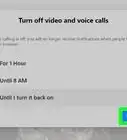
3Turn off notifications. Tap “Notifications” from the menu. This will toggle and disable the notifications. The toggle button should be set to “OFF.”Advertisement


Method 2
Method 2 of 3:Turning Off Notifications from Settings on iOS
Method 2
-
1Launch Settings. Locate and tap the Settings app on your iOS device.
-
2Tap “Notifications” from the menu. The Notification Center will appear, with the list of apps currently enabled and disabled for notifications.
-
3Open notifications for Messenger. Swipe down the list of apps, and look under the Include section, which contains the apps enabled for notifications. Tap “Messenger.” The app’s notifications menu will appear.
-
4Turn off notifications for Messenger. Tap the toggle button on the “Allow Notifications” item to disable the notifications. The toggle button should be set to “OFF.”Advertisement


Method 3
Method 3 of 3:Turning Off Messenger Notifications on Android
Method 3
-
1Launch Messenger. Tap the Messenger app on your Android device. The app icon is a dialogue circle with a zigzag in the middle.
-
2Tap the gear button on the header toolbar. This will bring out the Settings menu.
-
3Turn off notifications. Tap “Notifications” from the menu, and the Notifications submenu will appear. Tap the toggle button on the header to disable the notifications. The toggle button should be set to “OFF.”Advertisement



About This Article
Advertisement