X
This article was co-authored by Chris Batchelor, a trusted member of wikiHow's volunteer community. Chris Batchelor is a wikiHow community member and technology enthusiast. He has experience using a range of different platforms and software, and likes to keep up with updates and new features.
This article has been viewed 31,589 times.
Learn more...
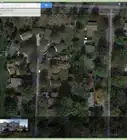
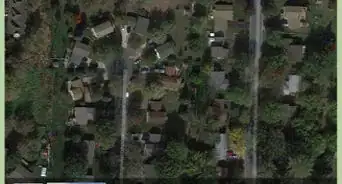
Do you use Google Earth to look at the world's buildings, but all you see now is just a world of black at times (when viewing at night)? You might have accidentally turned on a feature that causes it to turn everything the way a NASA scientist would see the world from space? Learn how to turn this feature back off, after reading this article.
Steps
-
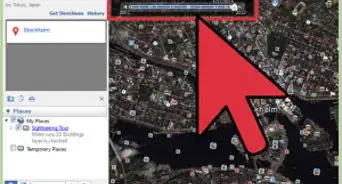
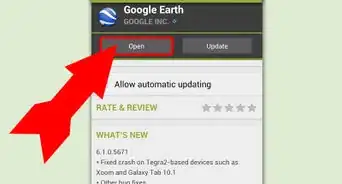
1Open Google Earth.Wait for the Google Earth service to initialize and self-login (no Google login required).
-
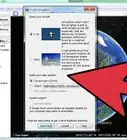
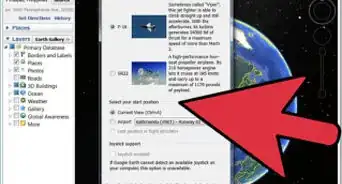
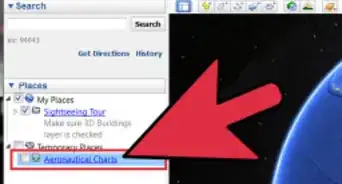
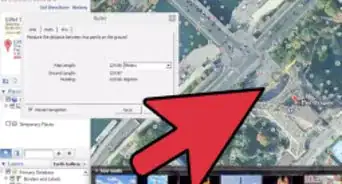
2Look down towards the bottom left hand corner of the screen for an area called "Layer". Scroll through the "Layer" list until you come to a "Gallery" option. Click the "+" icon that is to the left of the word. This should open a drop-down list.Advertisement
-
3Scroll through the list to find "NASA". Click the + button to the left of it's name.
-
4Scroll through the list and find "Earth City Lights". Again, click the "+" icon. (On most recent updates of Google Earth, this should automatically expand by default.)
-
5Click the radio-checkbox to the left of "Information" to turn this feature off.Advertisement


Things You'll Need
- Internet access (it won't work without it)
- Google Earth
- computer mouse and keyboard




About This Article
Advertisement