X
This article was written by Jack Lloyd. Jack Lloyd is a Technology Writer and Editor for wikiHow. He has over two years of experience writing and editing technology-related articles. He is technology enthusiast and an English teacher.
This article has been viewed 23,290 times.
This wikiHow teaches you how to take a snapshot of your screen on a Sony Xperia smartphone.
Steps
Method 1
Method 1 of 2:Using the Power and Volume Buttons
Method 1
-
1Find the page you want to screenshot. When you screenshot a page, everything on it that isn't a phone menu will be captured.
-
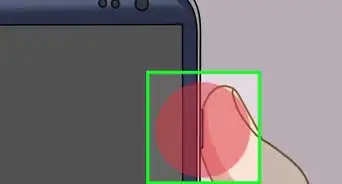
2Press the Power button and the Volume Up button at the same time. Both the Power button and Volume Up are on the right side of your Xperia's casing. Doing so will take a screenshot of your selected screen.
- This method works on most Android phones.
- Screenshots are saved to the "Screenshots" folder in your Pictures app.


Method 2
Method 2 of 2:Using the Power Button Menu
Method 2
-
1Find the page you want to screenshot. When you screenshot a page, everything on it that isn't a phone menu will be captured.
-
2Press and hold the Power button. It's on the right side of your Xperia's casing. Doing so will prompt a pop-up menu on your phone's screen.
-
3Tap Take a Screenshot. Your phone will take a screenshot of your selected screen.[1]
- Screenshots are saved to the "Screenshots" folder in your Pictures app.


Warnings
- Your smartphone must be running Android 4.3 or higher to screenshot using the Power button/Volume Up method.Thanks!