X
wikiHow is a “wiki,” similar to Wikipedia, which means that many of our articles are co-written by multiple authors. To create this article, 9 people, some anonymous, worked to edit and improve it over time.
The wikiHow Tech Team also followed the article's instructions and verified that they work.
This article has been viewed 84,076 times.
Learn more...
If you want to take screenshots with your iPod Touch, then all you have to do is aim the camera at the image you want to capture and then press the "Hold" and "Home" buttons at the same time. After that, you'll be able to find the image under "Saved photos." Read on for detailed instructions after the jump.
Steps
-
1Get your screen to look like what you want to take a picture of.
-
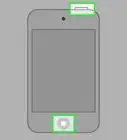
2Simultaneously press the Hold and Home buttons. (Hold=the button on the upper right you use to put your iPod in hold or to turn off, Home=the small button on the center bottom you use to get to the home screen)Advertisement
-
3Go to the photos section on your iPod, and you should see your photo in the "Saved Photos" section.
-
4If you want to get this photo onto your computer, hook up your iPod and go to your photo program (try iPhoto)
-
5If you have iPhoto, your iPod should appear and you can see and download the photos from there.
-
6If you have a PC, you can just File>Import and then find and choose your iPod.Advertisement













About This Article
Advertisement