X
wikiHow is a “wiki,” similar to Wikipedia, which means that many of our articles are co-written by multiple authors. To create this article, volunteer authors worked to edit and improve it over time.
This article has been viewed 11,965 times.
Learn more...
Lose It! is an online and mobile fitness management application that helps you handle your diet program by letting you track your workout regime and food intake. Lose It! is also very versatile and user-friendly. It’s very easy to navigate and can be synced with other workout devices or applications. If you’ve been using Fitbit to track your fitness programs, you can also sync its data with your Lose It! mobile application to make it more comprehensive and accurate.
Steps
Part 1
Part 1 of 2:Syncing Your Fitbit with Lose It!
Part 1
-
1Go to Lose It! Create a new browser tab and open the Lose It! website at http://www.loseit.com/.
-
2Sign in. Click the “Sign In” button at the top-right corner of the website to go to the login page. Enter your Lose It! account credentials on the text areas provided and tap the “Sign In” button to log in.
- If you don’t have a Lose It! account yet, click the “Create one now” link to get your login details.
-
3Go to Devices. Select “Apps & Devices” from the menu toolbar at the top of the Lose It! webpage to go to the devices section of the site.
-
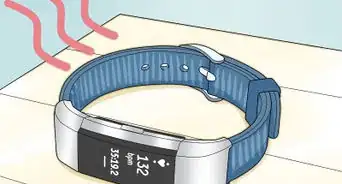
4Find your Fitbit device. Scroll down the list and look for any Fitbit device, like Aria, listed under the Weight category.
-
5Sync with Lose It! Click the “Connect” link beside the Fitbit device you selected and a Fitbit login page will open on a new browser window.
-
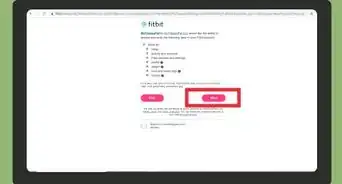
6Enter your Fitbit account details on the login page that you have just opened. Click the “Log In” button to sign in to your account. Your Fitbit data will automatically sync with your Lose It! account.


Part 2
Part 2 of 2:Downloading the Lose It! App
Part 2
-
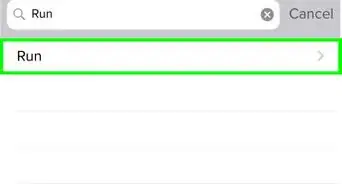
1Look for Lose It! in your device’s app store. Open the application market of your phone and look for the Lose It! app. Type in “Lose It” on the search bar to start looking for the app.
- Lose It! is currently available only on iTunes (for iPhone, iPod, iPad) and Google Play (for Android devices).
-
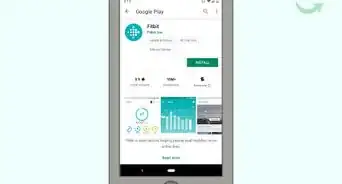
2Install the app. Select Lose It! from the result list and tap the “Install” button to start downloading and installing it on your smartphone.
-
3Open Lose It! Tap the Lose It! icon from your phone’s home screen to launch the application. The app’s login screen will appear once you open it.
-
4Log in. Enter your Lose It! account credentials on the text areas provided and tap the “Sign In” button to log in.
- Your Fitbit data should automatically appear once the app has downloaded your Lose It! account information.