This article was written by Travis Boylls. Travis Boylls is a Technology Writer and Editor for wikiHow. Travis has experience writing technology-related articles, providing software customer service, and in graphic design. He specializes in Windows, macOS, Android, iOS, and Linux platforms. He studied graphic design at Pikes Peak Community College.
This article has been viewed 13,968 times.
This wikiHow teaches you how to switch Hulu profiles on a Windows or Mac computer using the official Hulu website. Currently, you can't switch or use custom profiles in the official Windows Hulu app.
Steps
-
1Go to https://www.hulu.com in a web browser. You can use any web browser on PC or Mac.
-
2Log in to Hulu. If you're not already logged in automatically, click "Log In" in the upper-right corner. Log in with the email address and password associated with your Hulu account.Advertisement
-
3Select a profile. When you log into Hulu you will see all the profiles associated with your account below "Who is watching?" Select the profile you want to use.
-
4Hover the mouse over the current profile. Your profile name is in the upper-right corner of the Hulu website. Placing the mouse cursor over your profile name will display a menu.
-
5Select another profile. All profiles associated with your account are listed under "Switch Profiles" in the username menu. This will switch to a new profile.
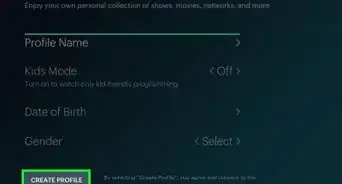
- You can also click "+ Add Profile" to create a new profile.
Advertisement


Community Q&A
-
QuestionHulu cant find my account. What can I do?
 BellaaroseCommunity AnswerMake sure that everything you entered is correct. If that doesn't work, contact Hulu Support.











About This Article

1. Go to https://www.hulu.com.
2. Click Log In and log in to your account.
3. Select a profile.
4. Hover the mouse over the current profile.
5. Select another profile.