X
This article was written by Jack Lloyd. Jack Lloyd is a Technology Writer and Editor for wikiHow. He has over two years of experience writing and editing technology-related articles. He is technology enthusiast and an English teacher.
This article has been viewed 13,488 times.
This wikiHow teaches you how to change which direction the camera is facing while recording a Snapchat video.
Steps
-
1Open the Snapchat app. It's the white ghost icon on a yellow background.
- If you aren't already logged in, tap Log In and enter your username (or email address) and password.
-
2Tap and hold the capture button. The capture button is the large circular button at the bottom of the screen.
- Don't tap the smaller button below the large one--doing that will open Snapchat's Memories folder instead of recording.
-
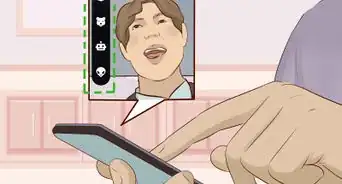
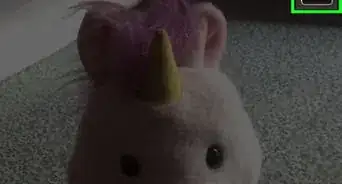
3Double-tap the screen quickly while recording. Doing so will flip the camera from facing forward to facing you (or vice versa).
- You can also tap the camera icon in the top right corner of the screen.
-
4Lift your finger off of the capture button. Your video snap will stop recording.
- You can edit your snap at this point by tapping one of the options in the top right corner of the screen.
- If you haven't switched cameras mid-snap before, you'll receive a Snapchat trophy for doing so.