X
wikiHow is a “wiki,” similar to Wikipedia, which means that many of our articles are co-written by multiple authors. To create this article, volunteer authors worked to edit and improve it over time.
This article has been viewed 200,691 times.
Learn more...
The Xbox One is an all in one entertainment system developed and distributed by Microsoft. It is the third video game console in the Xbox family, surpassing the previous model - the Xbox 360. The Xbox One allows you to stream video content with the help of Windows Media Center 7 and Windows 8.1 computers. All you need is to have both systems on the same network and you'll be able to stream content from the computer to the Xbox One.
Steps
Part 1
Part 1 of 2:Downloading the Xbox Video App
Part 1


Part 2
Part 2 of 2:Streaming Videos to the Xbox One
Part 2
-
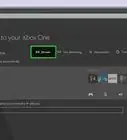
1Go to "Settings" and navigate to the "Preferences" section. Under the "System and App" section, enable the option labeled "Allow Play to Streaming."
-
2Select a video file on your PC. This will be file you want to stream.
-
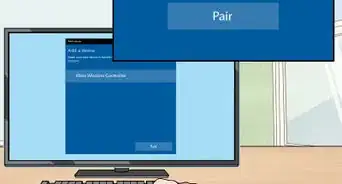
3Right-click the video file. Select the "Play To" option.
-
4Select Xbox One on the drop-down list that will appear. The video will automatically play on your TV with the help of the Xbox One.