This article was written by Darlene Antonelli, MA. Darlene Antonelli is a Technology Writer and Editor for wikiHow. Darlene has experience teaching college courses, writing technology-related articles, and working hands-on in the technology field. She earned an MA in Writing from Rowan University in 2012 and wrote her thesis on online communities and the personalities curated in such communities.
This wikiHow will teach you how to split large PDFs, TXT, XLSX, and CSV files using either Google Drive or a website. You can use either of these methods on Windows or Mac computers.
Steps
Method 1
Method 1 of 2:Splitting a PDF with Google Drive
-
1Open the PDF file in Drive. If you don't have the file already uploaded to your Drive, you'll need to do that first.
- To upload a PDF, click the + and File Upload. Double-click your file in your file manager, and you'll see its upload progress in the lower right corner of the web browser. Once it's done uploading, double-click the window to open the file.
-
2Click the Print icon. It's the icon that resembles a printer in the upper-right corner. This opens a print preview in a new tab.
-
3Click the Print icon again. It's the printer icon in the upper-right corner and will prompt a new window to pop up.
-
4Select "Save as PDF" as the Destination. From the drop-down menu next to "Destination," click to select "Save as PDF."
-
5Select "Custom" next to "Pages." Use the drop-down menu next to "Pages" to select "Custom". This allows you to create a new PDF from a range of pages.
-
6Enter the range of pages that you want to create as a new document. Use the text field below the "Pages" drop-down menu to enter the pages you want to save as a new PDF. For example, if you have a 10-page PDF that you want to split with the first 7 pages in one file and the last 3 in another, in the Pages section, enter "1-7" to create a PDF file with the first 7 pages.
-
7Click Save. It's a blue button in the bottom right corner of the window.
-
8Save the first half of the file. Use the field next to "Filename" to enter a name for the split PDF. It is easier to find the split pages if you give the new PDF a different name from the original.
- Click Save to continue.
-
9Repeat the previous steps to create more documents. If you need to create another document for the other pages, repeat these steps to create another document and use another range of pages to save the next document. For example, if you want the next document to contain pages 8-10, enter "8-10" as the range of pages below "Custom" in the print menu.
- You can refer to How to Split PDF Files to find out more about splitting PDFs.


Method 2
Method 2 of 2:Splitting a CSV, TXT, or XLSX File Using a Website
-
1Go to https://www.splitcsv.com/. If you have a .txt, .xlsx (not .xls), or .cvs file, you can use this service in your web browser. You can either use this service for free (with some limitations that are outlined on their pricing page) or pay per order, per day, week, or month for more features.
-
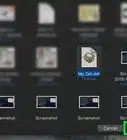
2Click Choose File and select your file. It's at the top of the page next to "CSV/XLSX File" and will prompt your file manager (File Explorer for Windows and Finder for Mac) to open.
- Your file will begin uploading to the service immediately.
-
3Choose if there are header rows as well as how many lines should appear in each split. If you want the original file to be split into multiple documents, enter a small number here.
- Go to each tab (Rows, Size, and Files) to specify your split.
-
4Click Confirm. When you're done changing the information in the tabs, click Confirm to see a window with your choices.
-
5Click Split. If you don't like the information in the pop-up window, click outside the window to return to the tabs.
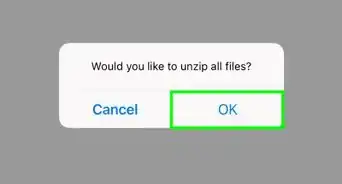
- Once you click Split, the website will begin splitting your file. You'll see a link that you can follow to download your files in a .zip folder when your file is finished splitting.[1]


About This Article

1. Open the PDF file in Drive.
2. Click the Print icon.
3. Click the Print icon again.
4. Select "Save as PDF" as the Destination.
5. Select "Custom" next to "Pages."
6. Enter the range of pages that you want to create as a new document.
7. Click Save.
8. Save the first half of the file.
9. Repeat the previous steps to create more documents.