X
wikiHow is a “wiki,” similar to Wikipedia, which means that many of our articles are co-written by multiple authors. To create this article, volunteer authors worked to edit and improve it over time.
This article has been viewed 15,552 times.
Learn more...
Notifications are a great way to let you read and respond to messages or chats as soon as you receive them. But if you’re at a place or in a situation where you don’t want to be disturbed—like while you’re watching movies, reading books, or just sleeping—you might want to snooze your Hangouts mobile app notifications. Snoozing lets you turn off Hangouts’ alert only for a specific span of time and then automatically switch back on once the time has lapsed.
Steps
Method 1
Method 1 of 2:Snoozing Notifications of Google+ Hangouts Android App
Method 1
-
1Launch the Hangouts app. Tap the Hangouts app icon from the home screen to launch it.
-
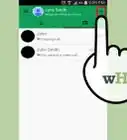
2Tap on the Menu on the top right side of the app. This will allow you to view the options of the Hangouts app.
-
3Select “Snooze Notification.” You will find this option in the menu list that appears.
-
4Choose the length of time you want to temporarily turn off the app’s notification. A message will appear on the screen notifying you that the Hangouts notifications have been “snoozed.” It will also display the time when the notifications will resume again.
- If you want to re-enable the notifications settings prior to the time you’ve selected, simply tap the “Resume” button beside the notification message.


Method 2
Method 2 of 2:Snoozing Notifications of Google+ Hangouts iOS App
Method 2
-
1Open Hangouts. Tap the Hangouts app icon from the home screen to launch it.
-
2Head to the app’s settings. Tap your profile photo at the top of the screen.
-
3Touch the bell icon. You can also choose the settings icon and then select Snooze notifications.
-
4Choose the length of time you want to temporarily turn off the app’s notification. A message will appear on the screen notifying you that the Hangouts notifications have been “snoozed.” It will also display the time when the notifications will resume again.
- If you want to re-enable the notifications settings prior to the time you’ve selected, tap your profile photo then tap the bell icon. Choose off.


Community Q&A
-
QuestionHow do I get notifications when someone comes on Hangouts?
 Community AnswerAllow push notifications. This may not work on all devices. If it does not work, then you may have to just check back often.
-on-Google+-Hangouts-Step-8.webp)