This article was written by Travis Boylls. Travis Boylls is a Technology Writer and Editor for wikiHow. Travis has experience writing technology-related articles, providing software customer service, and in graphic design. He specializes in Windows, macOS, Android, iOS, and Linux platforms. He studied graphic design at Pikes Peak Community College.
The wikiHow Tech Team also followed the article's instructions and verified that they work.
This article has been viewed 7,205 times.
This wikiHow teaches you how to share a Google Drive folder using the Google Drive app for iPhone and iPad. You can share the folder with anyone using Link Sharing, or you can share the folder with specific users.
Steps
Method 1
Method 1 of 2:Using Link Sharing
-
1Open Google Drive. It's the app with the green, yellow, and blue triangle.
- If you don't have the Google Drive app on your iPhone or iPad you can download it from the App Store and sign in with the email address and password associated with your Google account.
-
2Tap ⋯ on the folder you want to share. It's the icon with the three horizontal dots located next to or below the folder you want to share.Advertisement
-
3Tap Get link. It's the second option from the top, below "Add people". This turns Link Sharing on for the folder and copies the sharing link to your clipboard.
-
4Go to a new message or email. You can press the home button and open a new iMessage or Email and start a new message. Select the person you want to share the folder with as the recipient.
-
5Long press in the text field. Tap and hold in the area where you can type a message and a small option will pop-up near your cursor.
-
6Tap Paste. This pastes the link so you can send it. You can paste the link in any email, text message, instant message, social media post, or web forum post. Anybody who has access to the link will be able to view the folder.
-
7Send the message. Tap the button or option to post or send the message to share the link with the person you're sending the link to.
- To stop people from being able to view the link, return to the folder in your Google Drive app, tap ⋯ for the folder, then tap at the top, then tap Link sharing is ON, and tap Turn off link sharing at the bottom.
Advertisement


Method 2
-
1Open Google Drive. It's the app with the green, yellow, and blue triangle.
- If you don't have the Google Drive app on your iPhone or iPad you can download it from the App Store and sign in with the email address and password associated with your Google account.
-
2Tap ⋯ on the folder you want to share. It's the icon with the three horizontal dots located next to or below the folder you want to share.
-
3Tap Add people. It's the first option at the top, below the folder's name.
-
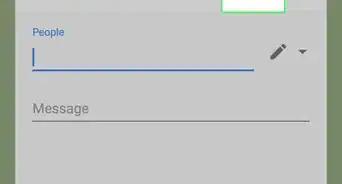
4Type a contact's name. In the "People" text line, type the name of a Google contact. As you type, matching results will filter below. Tap the matching contact when it appears to add the person to sharing list.
-
5Tap edit. It's the pencil icon to the right of the person you added.
-
6Tap a sharing option. You can choose either:
- Organize, add, and edit: Allows the users to edit and alter or change the folder and the files in it however they wish.
- View only: Allows the person to only view the folder and the files inside of it. They will not be able to edit for change anything.
-
7Tap . It's the paper airplane button in the top-right. This shares the folder with ther person you added.
- To remove someone's access to the folder, go to the folder in the Google Drive app, tap ⋯ next to the folder, tap , then tap the user's name and tap Remove this user.
Advertisement




About This Article

1. Open Google Drive.
2. Tap ⋯ next to a folder.
3. Tap Get link.
4. Go to a new message or email.
5. Press and hold on the text field.
6. Tap Paste.
7. Send the message.