X
wikiHow is a “wiki,” similar to Wikipedia, which means that many of our articles are co-written by multiple authors. To create this article, volunteer authors worked to edit and improve it over time.
Learn more...
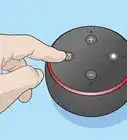
Although Alexa messages may add just the right message, if you'd like to tell someone at your Alexa device that you're coming (or similar), sending an announcement from your app may add just the right communication to keep those near the device aware that you are heading near them again.
Steps
-
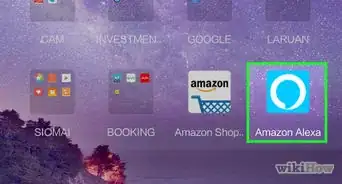
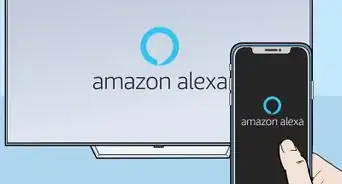
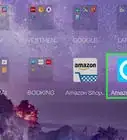
1Open the Amazon Alexa app. The Alexa app is sky-blue and has a white ring around it which decreases towards the bottom right-hand side. This icon exists for both operating systems - iPhone and Android. Tap it.
- Login - if you haven't done so already. Use your Amazon account credentials where the Alexa is set up at.
-
2Tap the "Communicate" tab. It may differ in its placement, but should be at the bottom of the app's screen.
-
3Tap the "Announce" button towards the top of the screen to the right of the "Drop In" button and above either the "Drop In" advertisement or the "New Message" button.
-
4Compose your announcement. Either tap the microphone icon on the screen and record it (tapping the play button to preview the message) or tap on the announcement box containing the initial text "e.g. I'm on my way home" and type in your announcement.
-
5Finish an audio recording, by tapping the red stop button underneath the recorder time about mid-center of the screen.
-
6Add sound effects (if you chose to send an audio announcement). Once you are done recording, you can add sound effects to the beginning of the message - the "Add Sound Effects" button will show once you've tapped the End/Stop button to finish recording the announcement message and you can tap the sound effect you'd like.
- Scroll the list up to view more effects you can send with your announcement message.
-
7Send the announcement. Tap the right-arrow pointer below the voice message box.
-
8Wait for confirmation of it being sent. When your screen flashes "Announced to all supported devices" and has a black checkmark inside a blue-filled circle and says which devices it's announcing on, you can be assured it's been sent successfully.
-
9Realize there's no way to send a message or announcement back to the sender from your Alexa device once the message comes through. However, the recipient can send a message manually by following the steps to send a manual message back to you.