X
This article was co-authored by wikiHow Staff. Our trained team of editors and researchers validate articles for accuracy and comprehensiveness. wikiHow's Content Management Team carefully monitors the work from our editorial staff to ensure that each article is backed by trusted research and meets our high quality standards.
This article has been viewed 18,488 times.
Learn more...
This wikiHow teaches how to send a photo or video you've created in Snapchat to a friend that doesn't use the app.
Steps
Part 1
Part 1 of 2:Saving a Snap
Part 1
-
1Open Snapchat. The icon is yellow white a white ghost silhouette.
-
2Tap or hold the Shutter button to take a Snap. This is the large circular button at the bottom of the Snapchat window. When you tap the button, you'll take a photo Snap. When you press and hold the button, you'll record a video Snap.Advertisement
-
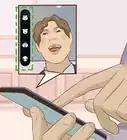
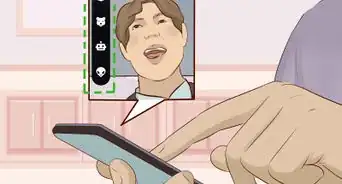
3Tap the buttons at the top of the screen to add edits and effects. You'll see these buttons appear after taking your Snap. The recipient will be able to see these even though they're not using Snapchat.
-
4Swipe left and right to add filters. Filters you add will be visible to the recipient as well. Some filters are only available in certain locations.
-
5Tap the Save button when you're satisfied with your Snap. You'll find this in the lower-left corner. The icon is an arrow pointing down at a line. This will save the Snap to your Memories, which is a cloud-based photo album for your saved Snaps.[1]
-
6Tap the X button to close the Snap. You'll find this in the upper-left corner. This will return you to the Camera screen.
-
7Save a Snap from your Story. Besides saving a Snap that you've just created, you can save Snaps that you've added to your Story in the last 24 hours:
- Open the Stories screen by tapping the 3-dot button in the lower-right corner.
- Tap the ⋮ button to the right of My Story. You won't see your Story at the top of the screen if you haven't added any Snaps in the last 24 hours.
- Tap the Snap you want to save. Snaps in your Story are automatically deleted after 24 hours.
- Tap the Save button. This looks like a chevron pointing towards a line, can can be found in the bottom-right corner after opening the Snap. The Snap will be added to your Memories.
Advertisement


Part 2
Part 2 of 2:Sending a Saved Snap
Part 2
-
1Open the Camera screen in Snapchat. You can access your Memories from the main Snapchat camera screen.
-
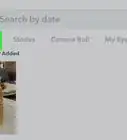
2Tap the Memories button. This is the small circle beneath the Shutter button on the Camera screen.
-
3Press and hold the thumbnail of Snap you just created. You should see it at the top of the Memories list.
-
4Tap Export Snap.
-
5Tap the method that you want to use to share the Snap. You can send the picture or video through your Messages or Mail app, or through any other social media and messaging apps you may have installed. Swipe the top row from right to left to view the sharing options.[2]
-
6Compose and send your message. The Snap attaches to a new message in whichever app you selected. The recipient will be able to view the photo or video like any other media file.
- Snaps sent outside of Snapchat will not automatically delete after being viewed, and you will not be notified you if a screenshot is taken when you share outside of Snapchat.
Advertisement






References
About This Article

wikiHow Staff
wikiHow Staff Writer
This article was co-authored by wikiHow Staff. Our trained team of editors and researchers validate articles for accuracy and comprehensiveness. wikiHow's Content Management Team carefully monitors the work from our editorial staff to ensure that each article is backed by trusted research and meets our high quality standards. This article has been viewed 18,488 times.
How helpful is this?
Co-authors: 3
Updated: March 29, 2019
Views: 18,488
Categories: Snapchat
Advertisement