X
This article was written by Jack Lloyd. Jack Lloyd is a Technology Writer and Editor for wikiHow. He has over two years of experience writing and editing technology-related articles. He is technology enthusiast and an English teacher.
This article has been viewed 30,031 times.
This wikiHow teaches you how to send a picture from your phone's photos folder to somebody on Snapchat.
Steps
-
1Open the Snapchat app. The Snapchat app resembles a white ghost icon on a yellow background.
- If you aren't logged into Snapchat, tap Log In and enter your username (or email address) and password.
-
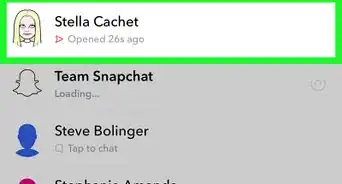
2Swipe right on the camera screen. This action will take you to the Chats page.Advertisement
-
3Tap a contact's name. Doing this will open a chat window with that specific contact.
-
4Tap the picture icon in the bottom left corner of the screen. Doing so will open your phone's camera roll from which you can select a picture to send.
- You may need to tap Allow to let Snapchat access your camera roll here.
- If you'd rather send a new picture or video, tap the circle button at the bottom of the screen and take a snap like usual.
-
5Tap a picture. Doing so will open it in your chat conversation.
- You can swipe up on the pictures to scroll through your camera roll's contents.
- You can also tap Edit in the bottom left corner of the screen to add drawings, stickers, text, and more to your photo, or you can swipe right or left to select more photos to send.
-
6Tap the send arrow. It's in the bottom right corner of your screen. Doing so will send your photo to your selected contact.Advertisement










About This Article
Article SummaryX
1. Open Snapchat.
2. Swipe right.
3. Tap a contact's name.
4. Tap the picture icon in the bottom left corner of the screen.
5. Select a photo.
6. Send your photo.
Did this summary help you?
Advertisement