X
This article was co-authored by wikiHow Staff. Our trained team of editors and researchers validate articles for accuracy and comprehensiveness. wikiHow's Content Management Team carefully monitors the work from our editorial staff to ensure that each article is backed by trusted research and meets our high quality standards.
This article has been viewed 68,257 times.
Learn more...
This wikiHow teaches you how to view messages sent to you by people who aren't on your friends list by accessing your "Filtered Requests" on Facebook Messenger.
Steps
Method 1
Method 1 of 2:iPhone/iPad
Method 1
-
1Open Facebook Messenger. The Messenger icon is blue with a white lightning bolt inside it.
-
2Tap People. It's in the bottom-right corner of the screen.
- On iPads, this button will be located towards the bottom-right corner of the conversation pane on the left side of the screen.
-
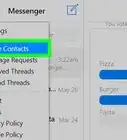
3Tap Message Requests. It's the icon with a blue speech bubble towards the top of the screen.
-
4Tap Show All. Doing so will display all the "Filtered Requests," or incoming messages you've received from people that you're not friends with.
-
5Tap on a conversation to view the message.


Method 2
Method 2 of 2:Android
Method 2
-
1Open Facebook Messenger. The Messenger icon is blue with a white lightning bolt inside it.
-
2Tap the menu icon. It's at the bottom-right corner of the screen.
-
3Tap Message Requests. It's the icon with a blue speech bubble towards the top of the screen.
-
4Tap See all. Doing so will display all the "Filtered Requests," or incoming messages you've received from people that you're not friends with.
-
5Tap on a conversation to view the message.


About This Article

wikiHow Staff
wikiHow Staff Writer
This article was co-authored by wikiHow Staff. Our trained team of editors and researchers validate articles for accuracy and comprehensiveness. wikiHow's Content Management Team carefully monitors the work from our editorial staff to ensure that each article is backed by trusted research and meets our high quality standards. This article has been viewed 68,257 times.
How helpful is this?
Co-authors: 3
Updated: April 28, 2020
Views: 68,257
Categories: Facebook Messenger
Article SummaryX
1. Open Messenger.
2. Tap People.
3. Tap Message Requests.
4. Tap Show All.
Did this summary help you?