wikiHow is a “wiki,” similar to Wikipedia, which means that many of our articles are co-written by multiple authors. To create this article, 17 people, some anonymous, worked to edit and improve it over time.
This article has been viewed 246,724 times.
Learn more...
Saving messages was easy with older answering machines and voicemail systems. You just pulled out the cassette holding the messages, put it away someplace safe for eternity and put a new cassette in the answering machine. However, most modern voicemail systems and even answering machines are digital and, once a message is erased – usually after a standard period of 21 to 30 days – it’s gone forever. Fortunately, there are some low-cost solutions and simple instructions that make it easy to learn how to save voicemail permanently.
Steps
Method 1
Method 1 of 3:Use a VOIP Service
-
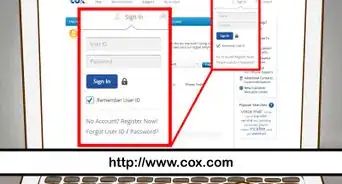
1Find a VOIP service that meets your needs. VOIP uses the Internet protocol for voice communication, which means you can talk on the phone right from your computer. The service you choose depends how often you’ll use it. Some plans charge a monthly fee, while others, like Skype, charge by the call.
-
2Subscribe to the service, then follow the instructions to activate and use it.
-
3Turn off all external microphones on your computer to avoid picking up background noise.
-
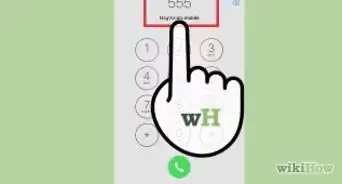
4Call your answering machine or voicemail box from the computer.
-
5Download recording software like Wave Pad or Fast Recorder.
-
6Start the recording software. Follow the manufacturer’s directions to choose the best settings.
-
7Play the message in Windows Media Player or other audio software to check the sound quality. Make adjustments to the recording software and re-record if necessary.
-
8Save the recorded message as a .wav, mp3 or other sound file.
-
9Burn the file to a CD, or save it on a USB thumb drive, network attached storage, or other safe place.


Method 2
Method 2 of 3:Use a Recorder
-
1Look for recording equipment that connects to your computer and a telephone adapter. These can be found online or at stores like Radio Shack.
-
2Plug one end into the jack on the phone and one into the “mic” jack on the computer.
-
3Start the recording software.
-
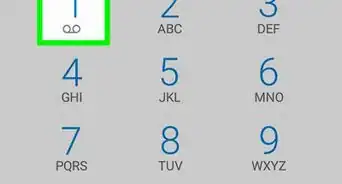
4Dial your voicemail box from the phone.
-
5Begin the recording. Use the “mic” or “wave out” setting.
-
6Save the recorded message as a sound file.
-
7Test the message. Play it back with audio software to check the sound quality. Make adjustments and re-record if necessary.
-
8Burn the file to a CD, or save it permanently to an attached storage device or hard drive.


Method 3
Method 3 of 3:Have a Service Do It for You
-
1Look into services that specialize in recording voicemail to audio files.
-
2Compare systems, prices and features. There are virtual phone systems and voicemail transfer systems like Got Voice or Decipher VoiceMail that save messages to audio files. Others, like Voice Cloud, convert voicemail to text and send it as an email attachment.
-
3Look for systems that offer a free trial period so you can see if you like them before making a long term commitment.
-
4Save the voicemail audio files the company sends you to a specific place on your hard drive.
-
5Burn the files to a CD or other storage device.