X
wikiHow is a “wiki,” similar to Wikipedia, which means that many of our articles are co-written by multiple authors. To create this article, volunteer authors worked to edit and improve it over time.
Learn more...
If you want to check out a virus's destructive nature, you can use a feature of Windows called Windows Sandbox. It requires the Windows 10 May 2019 Update and Windows 10 Pro. This wikiHow will show you how to use this feature.
Steps
Method 1
Method 1 of 2:Setting Up
Method 1
-
1Open the Windows Features dialog box. To do so, type in Turn Windows Features on or off in the search box. Choose the top result.
-
2Check the box next to Windows Sandbox. This will be listed near the bottom of the page.
- This app is only available on Windows 10 Pro on the May 2019 Update.
Advertisement -
3Choose OK. This will begin the installation of the Windows Sandbox feature.
-
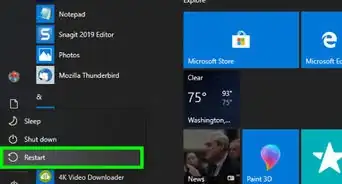
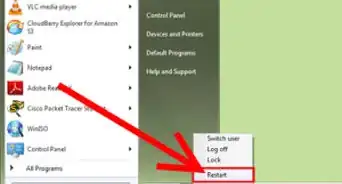
4Restart your computer. After restart, there should be a new app named "Windows Sandbox".Advertisement


Method 2
Method 2 of 2:Using Windows Sandbox
Method 2
-
1Open the Windows Sandbox app. This app has an icon of the shape of a sandbox. This can be found in the App list on Start or in Cortana search.
-
2Locate the malicious webpage/virus. You will have to find it on the internet. You can use Microsoft Edge to locate the virus. You may have to click on fake popups as well as fake warnings to get these viruses. For more information, see Get a Computer Virus.
-
3Download the virus. The virus will only infect the Windows Sandbox and should not cause harm to your PC.
- You can also cut and paste the files in question onto the Sandbox's desktop.
-
4Run the virus. You may want to record the Windows Sandbox window using Game Bar. Your files will be safe, and you can close out the sandbox window to stop the virus code from running.Advertisement






About This Article
Advertisement