X
wikiHow is a “wiki,” similar to Wikipedia, which means that many of our articles are co-written by multiple authors. To create this article, 20 people, some anonymous, worked to edit and improve it over time.
This article has been viewed 694,928 times.
Learn more...
Among the many cool features and functions of Adobe Acrobat, it also enables you to rotate pages of a PDF document. It just takes a few clicks, and is available in all the latest versions of Acrobat. We'll show you how.
Need help creating, merging, or converting PDF files? Try wikiHow's PDF Toolkit, a free and easy-to-use custom tool to help you be more productive with your documents.
Steps
-
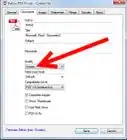
1Open the Rotate Pages dialog box. Use one of the following methods:
- From the Tools menu, select Pages, and then Rotate.
- From the Options menu in the Page Thumbnails panel of the navigation pane, choose Rotate Pages.
-
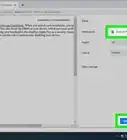
2Set direction of rotation. Select the amount and direction of the rotations: Counterclockwise 90 Degrees, Clockwise 90 Degrees, or 180 Degrees.Advertisement
-
3Specify page range. For Pages, set whether you want all pages, a selection of pages, or a range of pages to rotate.
-
4Specify page numbers. From the Rotate menu, specify even pages, odd pages, or both, and select the orientation of pages to be rotated.
- Note: these settings are important to enable rotation of any page in the document, independent of its page number or orientation. For example, if you have selected Portrait Pages from the second Rotate list, and if the selected page is a landscape page, the selected page will not be rotated.
-
5Click OK.The selected pages are rotated in the specified direction.Advertisement


-Step-11-Version-2.webp)




References
About This Article
Advertisement
-Step-11-Version-2.webp)