This article was co-authored by Darlene Antonelli, MA. Darlene Antonelli is a Technology Writer and Editor for wikiHow. Darlene has experience teaching college courses, writing technology-related articles, and working hands-on in the technology field. She earned an MA in Writing from Rowan University in 2012 and wrote her thesis on online communities and the personalities curated in such communities.
This article has been viewed 5,784 times.
This wikiHow will teach you how to retrieve passwords from iCloud Keychain. Once you have iCloud keychain set up, you can use it to see the passwords you have used on your mobile phone or tablet and Safari computer browser.
Steps
Method 1
Method 1 of 2:Finding Saved Passwords on iPhone, iPad, or iPod Touch
-
1Open Settings. You can tap the app icon that looks like a gear to open Settings.
- You can skip this method and instead ask Siri for your password by saying "Hey Siri, what's my Netflix password?"
-
2Tap Passwords. It's next to an icon of a key in the fifth grouping of menu options.[1]Advertisement
-
3Tap Website & App Passwords. You'll see it usually listed as the first option in this menu.
- Use FaceID or TouchID when prompted.
-
4Tap a website to see the password. The websites are listed alphabetically, so you may need to scroll to find the website you're looking for.
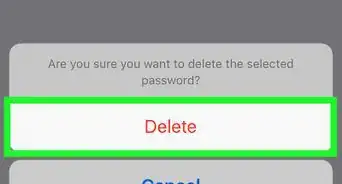
- To edit the saved password, tap Edit here. If you want to delete the saved password, tap Delete in the "Edit" menu.[2]
Advertisement


Method 2
Method 2 of 2:Finding Saved Passwords in Safari on Mac
-
1Open Safari. This app icon looks like a blue compass with a red needle that you'll see in your Dock.
-
2Click the Safari tab and click Preferences. You'll find the menu at the top of your screen.
-
3Click the Passwords tab. In the "Preferences" window, you'll see the Passwords tab along the top of the window with General, Tabs, and Advanced.
- Use TouchID or sign in with your password when prompted.
-
4Click a website to see the password. The websites are listed alphabetically, so you may need to scroll to find the website you're looking for.
- Click Details to update the password. Click Remove to delete it.[3]
Advertisement





References
About This Article

1. Open Settings.
2. Tap Passwords.
3. Tap Website & App Passwords.
4. Tap a website to see the password.
5. Click Search.