X
wikiHow is a “wiki,” similar to Wikipedia, which means that many of our articles are co-written by multiple authors. To create this article, 9 people, some anonymous, worked to edit and improve it over time.
This article has been viewed 47,630 times.
Learn more...
So maybe you had an incident where the paint program, no matter where you looked, didn't appear. You tried the search bar, you tried the programs, but somehow, it's just not there. Well, here's a way to get it back!
Steps
-
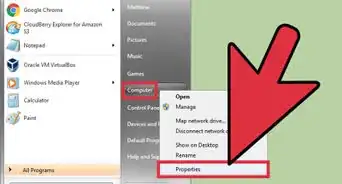
1Go to Start
-
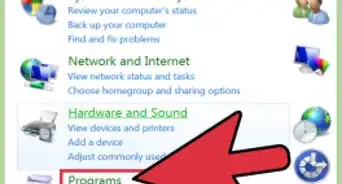
2Click 'Default Programs'. It is to the right, second one from the bottom
-
3Click 'Set your default settings'
-
4In the program bar, click 'Paint'. If it is not there, then you are out of luck.
-
5Click 'Set this program as default'
-
6Download an image or find it in your 'Pictures' folder
-
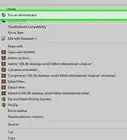
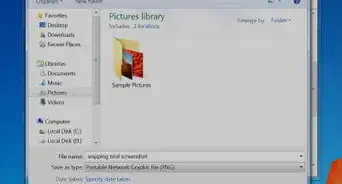
7Right click and click 'Open With...'
-
8Find Paint and click it
-
9The paint program will come up. Optional: Pin it to your desktop


Community Q&A
-
QuestionWhen I click, "default programs," it says, "explorer.exe application not found." What can I do?
 Community AnswerOpen the task manager and click, "run new task," at the top left. Then, type, "explorer.exe," and pin the explorer you just opened to the task bar.
 -
QuestionI dont have default settings because I am at a library. What should I do?
 ArroganceTop AnswererDo not attempt to alter a computer system that does not belong to you. Ask the librarian or someone in the library's technical department to install Paint for you.
 -
QuestionWhen I open ''Google Chrome (all programs)'' in the desktop screen, it says, "C:\user\public\desktop\googlechrome.lnk. Paint cannot read this file. This is not a valid bitmap file or ..." What can I do?
 Community Answer.lnk files are not images and therefore cannot be opened in Paint. .lnk files are shortcuts.
-Step-55-Version-2.webp)







-Step-55-Version-2.webp)