X
This article was written by Nicole Levine, MFA. Nicole Levine is a Technology Writer and Editor for wikiHow. She has more than 20 years of experience creating technical documentation and leading support teams at major web hosting and software companies. Nicole also holds an MFA in Creative Writing from Portland State University and teaches composition, fiction-writing, and zine-making at various institutions.
This article has been viewed 2,919 times.
This wikiHow teaches you how to reset your iPhone and restore it from an iTunes backup, and also how to use iTunes to reset your iPhone back to its originally factory settings.
Steps
Method 1
Method 1 of 2:Restoring from an iTunes Backup
Method 1
-
1Disable Find My iPhone. You'll need to turn off this feature before you can restore from the iTunes backup you've already created. Here's how:
- Open your iPhone's Settings .
- Tap your name.
- Tap iCloud.
- Tap Find My iPhone.
- Toggle the switch to Off .
- Enter your password and confirm the change.
-
2Connect your iPhone to the computer with iTunes. Use the cable that came with your iPhone or one that's compatible.
-
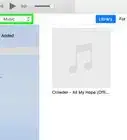
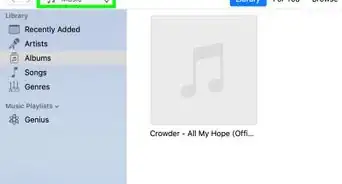
3Open iTunes. If iTunes did not open automatically, click the music note icon in the Dock (macOS) or click iTunes in the All Apps section of the Start menu (Windows).
-
4Click the iPhone icon. It's at the top-left corner of iTunes. This opens the iPhone's summary in the right panel.
-
5Click Restore Backup…. It's in the “Backups” section under “Manually Back Up and Restore.” A pop-up will appear.
-
6Select a backup and click Restore. Your iPhone's screen should now say “Restore in Progress.” Once the process is complete, your iPhone will be reverted to the state it was in when you did the selected backup.


Method 2
Method 2 of 2:Resetting an iPhone to its Original Settings
Method 2
-
1Disable Find My iPhone. You'll need to turn off this feature before you can restore your iPhone to its original factory settings. This will delete everything on your iPhone, but you'll have the option to make a backup of its current state that you can restore from.
- Open your iPhone's Settings .
- Tap your name.
- Tap iCloud.
- Tap Find My iPhone.
- Toggle the switch to Off .
- Enter your password and confirm the change.
-
2Connect your iPhone to the computer with iTunes. Use the cable that came with your iPhone or one that's compatible.
-
3Open iTunes. If iTunes did not open automatically, click the music note icon in the Dock (macOS) or click iTunes in the All Apps section of the Start menu (Windows).
-
4Click the iPhone icon. It's at the top-left corner of iTunes. This opens the iPhone's summary in the right panel.
-
5Click Restore iPhone. It's in near the top-right corner of the right panel under beneath the iOS version number. A pop-up message will appear, asking if you want to back up the phone.
-
6Select whether to back up your data. If the iPhone is not brand new, you may want to back up your data so you can restore when you're setting up the phone.
- To back up your data, click Back Up, and then follow the on-screen instructions to create the backup. When the backup is complete, a pop-up will appear, asking if you want to restore the iPhone.
- If you don't want to back up your data, click Don't Back Up.
-
7Click Restore on the pop-up window. A confirmation message will appear.
-
8Click OK.
-
9Click I Agree. iTunes will download the iOS software and then restore the iPhone to its original settings. When the process is complete, follow the on-screen instructions to restore from the iTunes backup.





About This Article

Nicole Levine, MFA
Tech Specialist
This article was written by Nicole Levine, MFA. Nicole Levine is a Technology Writer and Editor for wikiHow. She has more than 20 years of experience creating technical documentation and leading support teams at major web hosting and software companies. Nicole also holds an MFA in Creative Writing from Portland State University and teaches composition, fiction-writing, and zine-making at various institutions. This article has been viewed 2,919 times.
How helpful is this?
Co-authors: 3
Updated: January 7, 2020
Views: 2,919
Categories: ITunes