This article was written by Katie Double. Katie Double is a Technology Writer and Editor for wikiHow. She has over five years of experience in technical support, IT process analysis, and quantitative research. Katie loves exploring the application of various technological tools, from data analysis and visualization to music production and performance. Though originally from Denver, Colorado, she currently resides in New Zealand. She has a BA in Psychology from the University of Colorado Boulder.
This article has been viewed 12,474 times.
This wikiHow teaches you how to reset a lost Instagram password if you cannot access your email or Facebook to do so. You can use WhatsApp to recover your password through a text, or you can contact Instagram Support using the mobile app.
Steps
Method 1
Method 1 of 2:Using WhatsApp
-
1Download WhatsApp on your phone, tablet, or computer. Make sure that you are setting it up with the phone number that is set up with your Instagram account.
- You will need to verify this phone number via a text message, so you must have access to it.
-
2Open the Instagram app. Look for the multicolor icon with a white camera on your home screen or app menu. Tap the app to open it.
-
3Tap Get help with signing in. It's below the blue Log In button next to Forgotten your login details? on an Android.
- If you are using an iPhone or iPad, look for Forgot Password above the blue Log In button.
-
4Enter the phone number associated with your Instagram account. This may be the number you used to sign up with Instagram, or you may have added it later.
-
5Tap Next. Instagram will provide alternatives to access your account.
-
6Tap Send via WhatsApp. A WhatsApp text with a link will be sent to you.
-
7Open the WhatsApp text. On a phone or tablet, swipe down on your notification bar and tap on the text from Instagram.
- Alternatively, open WhatsApp. Look for a green icon with a white phone in a white circle on your home screen or app menu, or open it on a computer. Tap or click on the recent message from Instagram.
-
8Tap or click on the link in the text. If on a computer, you will be directed to a webpage—this will open automatically in a browser. If on a phone or tablet, you will be given options for opening the link—tap Instagram.
-
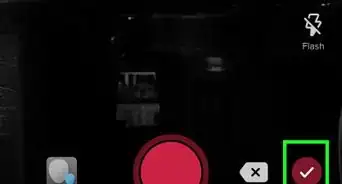
9Enter in a new password twice, then tap the checkmark in the top right. Your password will be reset.


Method 2
Method 2 of 2:Contacting Instagram Support on the Mobile App
-
1Open the Instagram app. Look for the multicolor icon with a white camera on your home screen or app menu. Tap the app to open it.
-
2Tap Get help with signing in. It's below the blue Log In button next to Forgotten your login details? on an Android.
- If you are using an iPhone or iPad, look for Forgot Password above the blue Log In button.
-
3Enter your Instagram username. You can also choose to enter the email address or phone number associated with your Instagram account.
-
4Tap Next. Instagram will provide alternatives to access your account.
-
5Tap Need More Help?. It's the text at the bottom.
-
6Fill in the request form. Enter in the following:
- The email address you used to sign up with Instagram.
- The email you prefer to use or be contacted on (tick the box above to use the same email as the sign-up email).
- Select the account type.
- Select the reason for the support request.
- Enter in any more relevant information.
-
7Tap Submit request. You will be notified when the support team responds to you.







About This Article
1. Download WhatsApp on your phone, tablet, or computer.
2. Open Instagram.
3. Tap Get help with signing in.
4. Enter the phone number associated with your Instagram account.
5. Tap Next, then Send via WhatsApp.
6. Open the link in the WhatsApp text sent to you from Instagram.