X
This article was written by Travis Boylls. Travis Boylls is a Technology Writer and Editor for wikiHow. Travis has experience writing technology-related articles, providing software customer service, and in graphic design. He specializes in Windows, macOS, Android, iOS, and Linux platforms. He studied graphic design at Pikes Peak Community College.
The wikiHow Tech Team also followed the article's instructions and verified that they work.
This article has been viewed 1,516 times.
This wikiHow will teach you how to replace a file on Google Drive for PC and Mac. If a file in Google Drive is not out date or incorrect, use these steps to replace that file with the correct one.
Steps
-
1Open your web browser.
-
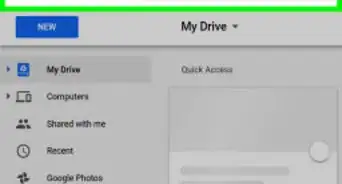
2Enter https://drive.google.com/drive/my-drive in the address bar at the top.Advertisement
-
3Sign in to your Google account. If you have not already done so, follow this link to sign in to your Google account.
-
4Select file you wish to replace.
-
5Right click on file and select Manage Versions.
-
6Click Upload New Version.
-
7Use the popup File browser to select new file.
-
8Click Open
-
9Click Close once file is uploaded. The file has now been replaced.Advertisement





About This Article

Travis Boylls
Tech Specialist
This article was written by Travis Boylls. Travis Boylls is a Technology Writer and Editor for wikiHow. Travis has experience writing technology-related articles, providing software customer service, and in graphic design. He specializes in Windows, macOS, Android, iOS, and Linux platforms. He studied graphic design at Pikes Peak Community College. This article has been viewed 1,516 times.
How helpful is this?
Co-authors: 3
Updated: May 25, 2021
Views: 1,516
Categories: Google Drive
Advertisement