This article was co-authored by wikiHow Staff. Our trained team of editors and researchers validate articles for accuracy and comprehensiveness. wikiHow's Content Management Team carefully monitors the work from our editorial staff to ensure that each article is backed by trusted research and meets our high quality standards.
The wikiHow Tech Team also followed the article's instructions and verified that they work.
This article has been viewed 2,209,507 times.
Learn more...
This wikiHow teaches you how to remove a page from any PDF document. If you're using a Mac, you can do this easily in Preview, which is preinstalled on your computer. If you're not using a Mac or need a different type of tool, you can use Adobe Acrobat Pro (which has a free trial and an online page deletion tool), or a free online PDF editor like SmallPDF. Luckily, there are plenty of free options you can use to quickly delete pages from your PDF files.
Need help creating, merging, or converting PDF files? Try wikiHow's PDF Toolkit, a free and easy-to-use custom tool to help you be more productive with your documents.
Steps
Method 1
Method 1 of 4:Using Preview on a Mac
-
1Double-click the PDF to open it in Preview. If it opens in another program instead, such as Adobe Reader, right-click the file, select Open With and then click Preview.
-
2Click the View menu. It's in the menu bar at the top of the screen.Advertisement
-
3Click Thumbnails on the menu. This displays all of the pages as thumbnails (small images).
-
4Select the page(s) you want to delete. If you want to delete more than one page, press and hold the Command key as you click each page.
-
5Press the Delete key on the keyboard. If you'd prefer, you can click the Edit menu at the top of the screen and select Delete instead. This removes the selected pages from your PDF.[1]Advertisement


Method 2
Method 2 of 4:Using SmallPDF on the Web
-
1Go to https://smallpdf.com/delete-pages-from-pdf in a web browser. This opens SmallPDF's Delete Pages from PDF tool. SmallPDF is a free online tool you can use to quickly remove pages from a PDF.
- You can use SmallPDF to delete pages from 2 PDFs each day at no cost. If you want unlimited edits, you can get a 7-day free trial, which also allows you to make other changes to PDFs in your web browser.
- SmallPDF is one of many similar sites that allow you to work with PDF files online at no cost. If you don't like SmallPDF or need to work with more than 2 files per day, you can search the web for "delete pages from pdfs online" to find alternatives.
-
2Click CHOOSE FILE. It's at the middle of the page.
-
3Select your PDF and click Open. This uploads your file to SmallPDF and displays the pages as thumbnails (small images).
-
4Hover your mouse cursor over a page you want to delete. You'll see a few icons appear at the top of the thumbnail image.
-
5Click the trash icon on the page. It's at the thumbnail's top-right corner. This removes that page from the file.
- Repeat this step for all other pages you want to delete.
-
6Click APPLY CHANGES. It's the blue-green button at the bottom-right corner. This removes the selected pages and displays a preview.
-
7Click Download to save the file. This saves the new version of the PDF to your computer.Advertisement


Method 3
Method 3 of 4:Adobe Acrobat Pro
-
1Open the PDF in Adobe Acrobat. If you have the paid version of Adobe Acrobat (including Acrobat 2020, Acrobat DC, or Acrobat 2017), you can use it to remove pages from any PDF.[2]
- If the PDF doesn't open in Acrobat, right-click the file, choose Open with, and then select Acrobat.
- You could also get a full-featured trial version of Adobe Acrobat, which will cost you nothing at all for 7 days. To get the trial, visit https://www.adobe.com/acrobat/free-trial-download.html.
-
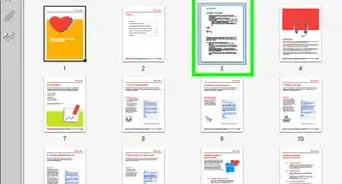
2Click Organize Pages. It's in the right panel (in the secondary toolbar). You'll now see thumbnails (small versions of each page) in the Document area.
-
3Select the page you want to delete. Clicking the thumbnail of the page you want to delete will select it.
- If you want to select multiple pages at once, click the Page Thumbnails button in the left panel to display thumbnails in a panel called "Page Thumbnails." Then, press and hold Ctrl (PC) or Command (Mac) as you click each page you want to delete in that panel.
-
4Click the trash icon to delete the selected page(s). If you just selected one page, click the trash icon right next to it. If you selected multiple pages, click the trash icon at the top of the Page Thumbnails panel.[3]Advertisement


Method 4
Method 4 of 4:Using Adobe Document Cloud on the Web
-
1Go to Adobe's PDF page deletion tool. You can access it in your web browser by visiting https://documentcloud.adobe.com/link/acrobat/delete-pages?x_api_client_id=adobe_com&x_api_client_location=delete_pages.
- This tool is a part of Adobe Acrobat Pro DC. If you have a subscription to Acrobat Pro, you can use this tool as much as you need. If you're not a subscriber, you can sign up for a free 7-day trial.
-
2Sign in with your Adobe account. If you don't have an account, click Create an account to sign up now.
-
3Click the blue Select files button. It's at the center of the page.
-
4Select your PDF and click Open. This uploads your PDF to Adobe's servers and displays it as thumbnails (small images of each page).
-
5Select the page(s) you want to delete. To select multiple pages, hover your mouse over each page you want to delete, and then click the checkbox at its upper-left corner.
-
6Click the trash icon. It's at the top of the page. This removes the selected pages from the document.
-
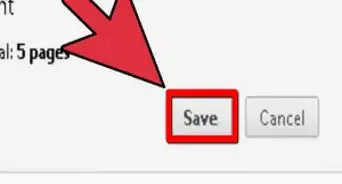
7Click the Save button. It's at the top-right corner of the page. This saves the PDF file without the deleted pages.Advertisement


Community Q&A
-
QuestionIn my Adobe Acrobat Reader DC, there is no option for "Print to PDF" in the Print command. What can I do?
 Community AnswerJust open the file in your internet browser, then click print or Ctrl+ P. In the Destination, chose "Save to PDF", then enter the page numbers you want. Click Save and you're done!
 -
QuestionWhat should I do if there is no "delete" icon in the thumbnail pane?
 Community AnswerThen you are using Adobe Reader, which is what most people have for just reading PDFs (not creating them). To delete pages, go to "print to PDF" in the print command. Chose to print only the pages you want to keep. Click print or create PDF. Then the pages will be gone.

References
About This Article

1. Open the PDF in Preview.
2. Click the View menu and select Thumbnails.
3. Select the page(s) you want to delete.
4. Press Delete on the keyboard.