X
This article was co-authored by wikiHow Staff. Our trained team of editors and researchers validate articles for accuracy and comprehensiveness. wikiHow's Content Management Team carefully monitors the work from our editorial staff to ensure that each article is backed by trusted research and meets our high quality standards.
This article has been viewed 17,430 times.
Learn more...
This wikiHow teaches you how to turn off Snapchat Lenses after you've activated them.
Steps
-
1Open Snapchat. It's a yellow app housing a white ghost. It will open onto the camera screen.
-
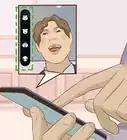
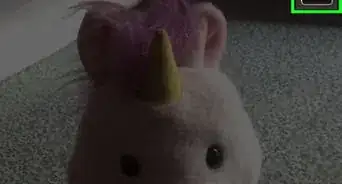
2Tap the camera screen. Doing so activates Lenses. The available Lenses appear in circles to the right of the camera button.
- Snapchat changes the selection of Lenses on a regular basis. Lenses use facial recognition technology and your device's motion sensor to add special effects to a Snap before you take it.
Advertisement -
3Scroll through the Lenses. Use your finger to slide the Lenses across the camera button. The effect displayed in the camera button is the effect that's currently onscreen.
- To use Lenses, activate them before you take a Snap.
- Follow the onscreen prompts for the various Lenses to get the best results.
- Take a Snap when the Lenses effect you like is inside the camera button, and the effect will be added to your photo or video.
-
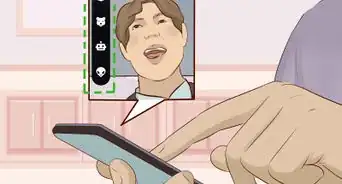
4Tap ⓧ. It's at the bottom center of the screen. Doing so turns off Lenses so you can take a photo or video Snap without effects.
- Alternatively, you can scroll right, all the way back through the Lenses selections, until the camera button is empty.
- You can also swipe away from the camera screen, and then swipe back to return to it, to remove Lenses.
- You can't remove a Lenses effect from a Snap that you've already taken. You'll have to re-shoot the Snap.
Advertisement



About This Article

wikiHow Staff
wikiHow Staff Writer
This article was co-authored by wikiHow Staff. Our trained team of editors and researchers validate articles for accuracy and comprehensiveness. wikiHow's Content Management Team carefully monitors the work from our editorial staff to ensure that each article is backed by trusted research and meets our high quality standards. This article has been viewed 17,430 times.
How helpful is this?
Co-authors: 2
Updated: May 15, 2018
Views: 17,430
Categories: Snapchat
Article SummaryX
Tap the ⓧ below the camera button to remove a Lens before you take a Snap.
Did this summary help you?
Advertisement