This article was written by Darlene Antonelli, MA. Darlene Antonelli is a Technology Writer and Editor for wikiHow. Darlene has experience teaching college courses, writing technology-related articles, and working hands-on in the technology field. She earned an MA in Writing from Rowan University in 2012 and wrote her thesis on online communities and the personalities curated in such communities.
This article has been viewed 11,974 times.
The thin lines in Adobe Illustrator are there to help you align elements accurately, but you can get rid of them. This wikiHow will teach you how to remove or move all or some guides in Illustrator.
Steps
Method 1
Method 1 of 3:Deleting All Guides
-
1Open your project in Illustrator. You can either open Illustrator, then go to File > Open or you can right-click your project file and select Open with > Illustrator.
-
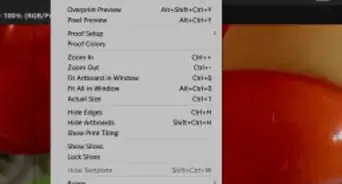
2Click View. You'll see this menu at the top of the screen and another menu will drop-down.
-
3Hover your mouse over Guides. Another menu will pop out.
-
4Click Clear Guides. This will remove all guides from your screen.


Method 2
Method 2 of 3:Deleting Some Guides
-
1Open your project in Illustrator. You can either open Illustrator, then go to File > Open or you can right-click your project file and select Open with > Illustrator.
-
2Select the guide you want to remove. Click it to select it; if you're having trouble with layers getting in the way, you can click the guide's end-point on the ruler that surrounds your project.
-
3Press ← Backspace (Windows) or Delete (Mac). If this keyboard shortcut does not work for you, go to Edit > Cut/Edit > Clear. The individual guide you selected will be deleted.


Method 3
Method 3 of 3:Moving Guides
-
1Open your project in Illustrator. You can either open Illustrator, then go to File > Open or you can right-click your project file and select Open with > Illustrator.
-
2Select the guide you want to move. Click it to select it; if you're having trouble with layers getting in the way, you can click the guide's end-point on the ruler that surrounds your project.
-
3Drag and drop it. You can freely move the guide if you have guides unlocked.[1]






References
About This Article

1. Open your project in Illustrator.
2. Click View.
3. Hover your mouse over Guides.
4. Click Clear Guides.