This article was written by Darlene Antonelli, MA. Darlene Antonelli is a Technology Writer and Editor for wikiHow. Darlene has experience teaching college courses, writing technology-related articles, and working hands-on in the technology field. She earned an MA in Writing from Rowan University in 2012 and wrote her thesis on online communities and the personalities curated in such communities.
This article has been viewed 12,519 times.
Although Microsoft Edge is available for most platforms, it comes pre-installed on Windows 10 PCs. This means that if you're using another web browser on Windows 10, you may see bombarded with system notifications asking you to use Edge. This wikiHow will teach you how to stop and remove system notifications for Edge on a Windows 10 computer, as well as how to disable other types of notifications in Edge on other platforms.
Steps
Method 1
Method 1 of 3:Disabling System Notifications from Edge in Windows 10
-
1Open Settings. You can press the Windows key and I to open settings, or you can search for it in the search bar.
-
2Click System. This is usually the first listing in the menu.
-
3Click Notifications & actions. It's in the panel on the left side of the menu.
-
4Click the box to unselect the option for "Get tips, tricks, and suggestions as you use Windows." The box shouldn't have a checkmark inside it to indicate that it is not an active feature. You will no longer receive notifications in the action center, over your listed battery power, or in your taskbar for Edge.[1]
- You can also click the switch to the off position under "Notifications" to turn off all the Windows 10 notifications, including Mail and Calendar.


Method 2
Method 2 of 3:Disabling Browser Notifications in Edge on Android and iOS
-
1Open Microsoft Edge. This app icon looks like a blue and green stylized "e" that you'll find on one of your Home screens, in the app drawer, or by searching.
-
2Tap ••• . You'll find this three-dot menu icon centered in the bottom of your screen.
-
3Tap Settings. It's next to the gear icon on the right side of the menu.
-
4Tap Site permissions. This is under the header, "Advanced" near the bottom of the menu.
-
5Tap Notifications. You'll see it near the middle of the menu.
-
6Tap the toggle to the off position next to "Notifications." This setting turns off all notifications from Edge.[2]


Method 3
Method 3 of 3:Disabling Browser Notifications in Edge on a Computer
-
1Open Edge. You'll find it in your Start menu or Applications folder.
- Use this method on any (Mac or Windows) computer to turn off the notifications within the browser.
-
2Click ••• . You'll find this three-dot menu icon in the upper right corner of the browser window.
-
3Click Settings. It's next to the gear icon near the bottom of the menu.
-
4Click Site permissions. You'll find this in the menu on the left side of the page.
-
5Click Notifications. It's near the middle of the menu next to an icon of a bell.
-
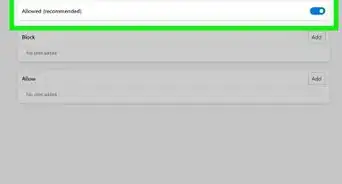
6Click the toggle to the off position next to "Ask before sending." Turning this off will block all websites from sending you notifications.[3]




References
About This Article

1. Open Settings.
2. Click System.
3. Click Notifications & actions.
4. Click the box to unselect the option for "Get tips, tricks, and suggestions as you use Windows."