This article was co-authored by wikiHow Staff. Our trained team of editors and researchers validate articles for accuracy and comprehensiveness. wikiHow's Content Management Team carefully monitors the work from our editorial staff to ensure that each article is backed by trusted research and meets our high quality standards.
This article has been viewed 22,442 times.
Learn more...
This wikiHow teaches you how to stop seeing ads in your Yahoo Mail inbox when you're using Firefox. Yahoo Mail ads are cleverly disguised as email messages at the top of your inbox, but if you look closely, you'll see the word "Ad" next to the sender's name. Some of the more popular Firefox ad-blockers don't catch these ads, but we've found an exception: uBlock Origin. Another way to remove these ads is to subscribe to Yahoo Mail Pro, which also prevents these ads in other web browsers.
Steps
Method 1
Method 1 of 2:Using uBlock Origin
-
1Go to https://addons.mozilla.org in Firefox. This is the official Firefox add-ons website, where you can download thousands of cool tools, including a free ad-blocker that works on Yahoo Mail.
-
2Type ublock into the search bar and press ↵ Enter or ⏎ Return. The search bar is in the top-right area of the add-ons page. A list of search results will appear.
-
3Click uBlock Origin. It's the red shield icon with "uo" inside. The name of the developer, Raymond Hill, appears below its icon.
-
4Click the + Add to Firefox button. It's near the top of the page. A warning pop-up will appear.
-
5Review the warning and click Add. The warning message gives you information about what uBlock will be able to do on Firefox. These permissions are needed to block the ads in Yahoo Mail.
- uBlock Origin is listed as one of Firefox's recommended extensions, which means it's part of a curated collection that meets high security standards.[1]
-
6Click Okay, Got It when uBlock Origin is installed. It'll appear near the top-right corner of the browser. You should now see a red shield icon with "uo" inside with the other icons at the top-right corner of Firefox.
-
7Navigate to https://mail.yahoo.com in a new browser tab. To open a new browser tab, click the + to the right of the last visible tab at the top of Firefox. Then, navigate to Yahoo Mail in that tab. You will no longer see ads at the top of your inbox in Yahoo Mail.
- uBlock Origin will also prevent ads from appearing on other websites. While this may be a welcome respite from flashy ads, you may also notice that some sites don't work properly anymore. To turn off uBlock Origin for a single website, go to that site, click the red-and-white "uo" shield, and click the large blue "power" button icon to disable ad-blocking on that site.
-Step-1.jpg)
-Step-2.jpg)
-Step-3.jpg)
-Step-4.jpg)
-Step-5.jpg)
-Step-6.jpg)
-Step-7.jpg)
Method 2
Method 2 of 2:Getting Yahoo Mail Pro
-
1Go to https://payments.mail.yahoo.com in a web browser. You can use Firefox or any other web browser you'd like to subscribe to the ad-free version of Yahoo Mail. Yahoo Mail Pro doesn't just block ads in Yahoo Mail—you'll also get speedier performance, priority support, and a guarantee that your mailbox won't be purged due to inactivity.[2]
- This is a paid service, so make sure you have your PayPal, credit card, or debit card info handy. As of September 2020, the monthly cost is $3.49 USD. You can test the service out for free using a 14-day free trial.
- There is a separate subscription required to use Yahoo Mail Pro on a phone or tablet. The price is cheaper ($.99 USD per month as of September 2020), but there is no trial period and the subscription won't carry over to your computer. To sign up for that version, open the Yahoo Mail mobile app, tap your avatar at the top-left corner, select Upgrade to Mail Pro, and then follow the on-screen instructions.
-
2Click the blue Start your free trial button. It's near the top of the page.
-
3Select a payment method. If PayPal is available in your locale, you can click the PayPal tab at the top of the page. If you want to use a credit or debit card, click the tab with the various card logs (e.g., Visa, MasterCard) instead.
- If you're not already signed in, you'll be prompted to do so before you see payment options.
- Although you will receive a 14-day free trial membership, a payment method is still required. If you don't cancel your trial before the end of the trial period, the payment method you enter will be billed the monthly subscription amount listed at the top-left corner of the page.
-
4Enter your payment details. If you're using PayPal, click the Sign into PayPal button, log in, and follow the on-screen instructions to confirm your payment method. Otherwise, enter the information from your credit or debit card into the form.
- If you're using a debit card, check the box next to "I am using a Debit Card" below your card information to review the debit card terms, and then select I agree if you agree to them.
- If you have a promo code, enter it into the field at the bottom of the left column.
-
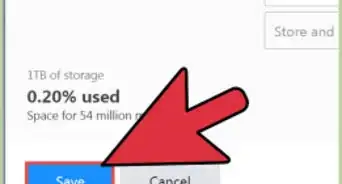
5Click the Start free trial button. It's below your payment information. This confirms your free trial to Yahoo Mail Pro.
- If you want to cancel Yahoo Mail Pro, head to https://payments.mail.yahoo.com and select Cancel Service.
- If you don't cancel before the trial ends, you will be billed the displayed amount in 14 days, and every month after that.
-
6Navigate to https://mail.yahoo.com in a new browser tab. To open a new browser tab, click the + to the right of the last visible tab at the top of Firefox. Then, navigate to Yahoo Mail in that tab. You will no longer see ads at the top of your inbox in Yahoo Mail.
-Step-8.jpg)
-Step-9.jpg)
-Step-10.jpg)
-Step-11.jpg)
-Step-12.jpg)
-Step-13.jpg)
Community Q&A
-
QuestionHow do I delete all the pizza ads while trying to search on Yahoo?
 Community AnswerJust use AdBlock, that will do the trick. If your browser is Chrome or Firefox, it will be available in the Web Store (Chrome), or Firefox Add-Ons (Firefox).
References
About This Article

1. Go to https://support.mozilla.org/en-US/kb/recommended-extensions-program.
2. Click Add to Firefox.
3. Click Add.
4. Click OK, Got It.
5. Click + to open a new browser tab.
6. Open Yahoo Mail for an ad-free inbox.