X
wikiHow is a “wiki,” similar to Wikipedia, which means that many of our articles are co-written by multiple authors. To create this article, 13 people, some anonymous, worked to edit and improve it over time.
The wikiHow Tech Team also followed the article's instructions and verified that they work.
This article has been viewed 62,591 times.
Learn more...
If Finder has frozen on your Mac, resulting in issues like the dock not magnifying or the Apple menu not dropping down, relaunching it will usually solve the issue. You can relaunch Finder by using keyboard shortcuts, the Apple menu, or your mouse and keyboard, depending on which one works.
Steps
Method 1
Method 1 of 3:Keyboard Shortcuts
Method 1
-
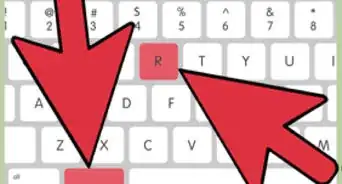
1Press ⌘ Command+⌥ Option+Esc. This will open "Force Quit".
-
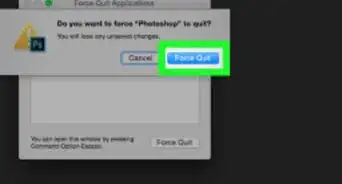
2Navigate to and choose "Finder".Advertisement
-
3Click Relaunch. In a few seconds, the dock, icons, and Apple menu will disappear. It will then quickly reappear and reload everything.Advertisement


Method 2
Method 2 of 3:Mouse
Method 2


Method 3
Method 3 of 3:Right-Click
Method 3


Warnings
- Only do this when Finder is still frozen. If it is not frozen, you risk losing data that might not be recovered.Thanks!
Advertisement












About This Article
Advertisement