X
wikiHow is a “wiki,” similar to Wikipedia, which means that many of our articles are co-written by multiple authors. To create this article, volunteer authors worked to edit and improve it over time.
This article has been viewed 31,978 times.
Learn more...
Gpupdate refreshes local and based on Active Directory, Group Policy settings, including security settings on the computer on which it is running. Gpupdate command can be used locally on a computer running Windows XP or later to immediately refresh rules.
Steps
-
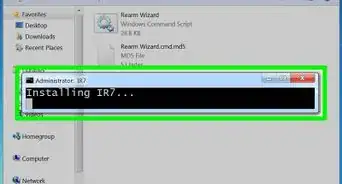
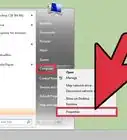
1Run a command prompt as an administrator. To do this, right-click and select run as administrator.
-
2A new window will display the console. Enter the command: "gpupdate /force" and press enter.
-
3Wait a moment. Group Policy changes will be updated. The console displays:
-
4If you want to refresh Group Policy and restart the computer (for example, if with the update rules of the groups have yet to install the software), use the command "gpupdate /boot". This will restart your computer and update the changes.



-Step-55-Version-2.webp)





-Step-55-Version-2.webp)









































