X
This article was written by Nicole Levine, MFA. Nicole Levine is a Technology Writer and Editor for wikiHow. She has more than 20 years of experience creating technical documentation and leading support teams at major web hosting and software companies. Nicole also holds an MFA in Creative Writing from Portland State University and teaches composition, fiction-writing, and zine-making at various institutions.
This article has been viewed 5,339 times.
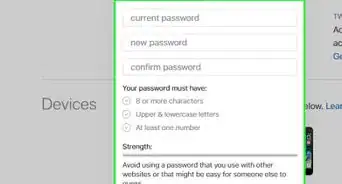
This wikiHow teaches you how to reset your iTunes account password when you’re using a computer. You can either answer your Apple ID security questions or request a password reset email.
Steps
Method 1
Method 1 of 2:Using a Password Reset Email
Method 1
-
1Go to https://secure.store.apple.com/shop/account/setup/start in a web browser. You can reset your iTunes account password using this website.
-
2Click Forgot Apple ID or password?. It’s below the login fields.Advertisement
-
3Enter your email address. Use the address associated with your Apple ID/iTunes account.
-
4Type the code from the image. This is just to prove you’re not a robot.
-
5Click Continue. It’s at the bottom of the page.
-
6Select I need to reset my password.
-
7Click Continue.
-
8Select Get an email. This option will send a password reset link to your email address.
-
9Click Continue.
-
10Open the email message from Apple. The sender is “appleid@id.apple.com.”
-
11Click Reset now in the message. This re-opens your web browser to the password reset page.
-
12Follow the on-screen instructions to reset your password. Once your password is reset, you can enter it in iTunes the next time you’re prompted to do so.Advertisement


Method 2
Method 2 of 2:Answering Security Questions
Method 2
-
1Go to https://secure.store.apple.com/shop/account/setup/start in a web browser. You can reset your iTunes account password using this website.
-
2Click Forgot Apple ID or password?. It’s below the login fields.
-
3Enter your email address. Use the address associated with your Apple ID/iTunes account.
-
4Type the code from the image. This is just to prove you’re not a robot.
-
5Click Continue. It’s at the bottom of the page.
-
6Select I need to reset my password.
-
7Click Continue.
-
8Select Answer security questions. It’s the second option. This selection allows you to answer the questions you configured when you first set up your Apple ID.
-
9Click Continue.
-
10Enter your birthday in 01/01/1990 format.
-
11Click Continue. Once your birthday is verified, two questions will appear.
-
12Enter the answers for both questions.
-
13Click Continue. As long as the answers are correct, you’ll be redirected to the password reset page.
-
14Follow the on-screen instructions to reset your password. Once your password is reset, you can enter it in iTunes the next time you’re prompted to do so.Advertisement





About This Article

Nicole Levine, MFA
Tech Specialist
This article was written by Nicole Levine, MFA. Nicole Levine is a Technology Writer and Editor for wikiHow. She has more than 20 years of experience creating technical documentation and leading support teams at major web hosting and software companies. Nicole also holds an MFA in Creative Writing from Portland State University and teaches composition, fiction-writing, and zine-making at various institutions. This article has been viewed 5,339 times.
How helpful is this?
Co-authors: 1
Updated: May 31, 2018
Views: 5,339
Categories: ITunes | Internet Passwords and Usernames
Advertisement