This article was co-authored by wikiHow Staff. Our trained team of editors and researchers validate articles for accuracy and comprehensiveness. wikiHow's Content Management Team carefully monitors the work from our editorial staff to ensure that each article is backed by trusted research and meets our high quality standards.
The wikiHow Tech Team also followed the article's instructions and verified that they work.
This article has been viewed 2,227 times.
Learn more...
This wikiHow teaches you how to reset your account password on Spotify, and set a new password to sign in to your account, using an iPhone or iPad.
Steps
-
1Open the Spotify app on your iPhone or iPad. The Spotify icon looks like a green circle with three black sound waves in it. You can find it on your home screen or in an app folder.
-
2Click the LOG IN button. This is a white button at the bottom of your screen. It will open the login form.
-
3Tap the "Having trouble logging in? Get help here." link at the bottom. You can find this link below the LOG IN button at the bottom of your screen. It will open the account recovery page.
-
4Tap the "Email address or username" field. You can enter your email or username here, and receive an automated email with a link to reset your password.
-
5Enter your email address or username. Tap the text field, and type the email address linked to your Spotify account or your Spotify username.
-
6Tap the SEND EMAIL button. It's a white button at the bottom of your screen. This will send your mailbox an automated email with a password reset link.
-
7Open your mailbox. You can open your mailbox in your mobile mail app or in your browser.
-
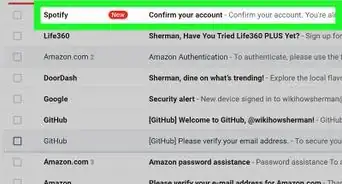
8Find and tap the recovery email from Spotify. This will open the automated email message's contents. You can find a link to reset your password here.
- The subject line of the email should be "Reset your Spotify password."
-
9Tap the SET A NEW PASSWORD button in the email. This is a green button in the email's body. It will redirect you back to the Spotify app.
-
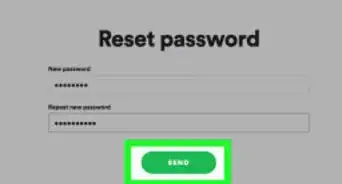
10Enter a new account password in the "New password" field. Tap the text field at the top, and type the new password you want to use with your account.
-
11Enter your new password again in the "Re-enter new password" field. Make sure this field exactly matches the "New password" field above.
-
12Tap the UPDATE PASSWORD button. This is a white button at the bottom of the page. This will confirm your new password, and log you in to your Spotify account.






About This Article

1. Open Spotify.
2. Click LOG IN.
3. Tap "Get help here." at the bottom.
4. Enter your email or username.
5. Tap SEND EMAIL.
6. Open your mailbox, and tap Spotify's email.
7. Tap SET A NEW PASSWORD.
8. Enter and confirm your new password.
9. Tap UPDATE PASSWORD.