X
This article was written by Nicole Levine, MFA. Nicole Levine is a Technology Writer and Editor for wikiHow. She has more than 20 years of experience creating technical documentation and leading support teams at major web hosting and software companies. Nicole also holds an MFA in Creative Writing from Portland State University and teaches composition, fiction-writing, and zine-making at various institutions.
This article has been viewed 3,462 times.
This wikiHow teaches you how to restore any file you deleted from your Google Drive when you’re using a computer.
Steps
-
1Go to https://drive.google.com in a web browser. This displays the contents of your Google Drive.
- If you aren’t logged in to Google, click Go to Google Drive to log in now.
-
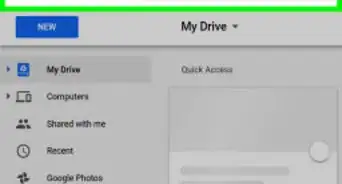
2Click Trash or Bin. It’s listed in the left column. The name of this folder varies by country, so just look for the garbage bin/trash icon.
-
3Right-click the file you want to restore. A pop-up menu will appear.
- On Macs: If you don’t have a right mouse button, hold Ctrl as you click with the left mouse button.
-
4Click Restore. The file will be moved back to its original location. You can now browse to that folder to view it or click Locate if you don’t remember where it is.




About This Article

Nicole Levine, MFA
Tech Specialist
This article was written by Nicole Levine, MFA. Nicole Levine is a Technology Writer and Editor for wikiHow. She has more than 20 years of experience creating technical documentation and leading support teams at major web hosting and software companies. Nicole also holds an MFA in Creative Writing from Portland State University and teaches composition, fiction-writing, and zine-making at various institutions. This article has been viewed 3,462 times.
How helpful is this?
Co-authors: 3
Updated: May 25, 2021
Views: 3,462
Categories: Google Drive
Article SummaryX
1. Sign in to https://drive.google.com.
2. Click Trash or Bin.
3. Right-click the file.
4. Click Restore.
Did this summary help you?