This article was written by Darlene Antonelli, MA. Darlene Antonelli is a Technology Writer and Editor for wikiHow. Darlene has experience teaching college courses, writing technology-related articles, and working hands-on in the technology field. She earned an MA in Writing from Rowan University in 2012 and wrote her thesis on online communities and the personalities curated in such communities.
This article has been viewed 1,977 times.
This wikiHow will teach you how to recover accidentally deleted Sticky Notes in Windows 10. First, make sure you're signed into your Microsoft account by clicking the gear icon in the top right corner of the app, then go to https://outlook.live.com/mail/0/inbox in a web browser and use your Outlook account to find your accidentally deleted notes.
Steps
-
1Go to https://outlook.live.com/mail/0/inbox and sign in. If you're already logged in, you can skip this step. Otherwise, enter your Microsoft login information (which should be the same login information you used for Sticky Notes).
-
2Click Deleted Items. It's in the vertical menu on the left side of the page next to an icon of a trash can. [1]
-
3Right-click the note you want to recover. You'll see a menu drop down.
-
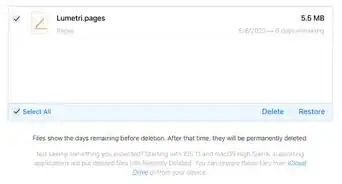
4Click Restore. It's near the top or the middle of the menu.
- The note will appear again in your Sticky Notes. If you don't see the note as soon as you click Restore, you need to restart Sticky Notes by closing it and opening it again.
- You can also copy the text of the note and paste it into a new Sticky Note instead.[2]





-Step-6.webp)
About This Article

1. Go to https://outlook.live.com/mail/0/inbox and sign in.
2. Click Deleted Items.
3. Right-click the note you want to recover.
4. Click Restore.