This article was written by Darlene Antonelli, MA. Darlene Antonelli is a Technology Writer and Editor for wikiHow. Darlene has experience teaching college courses, writing technology-related articles, and working hands-on in the technology field. She earned an MA in Writing from Rowan University in 2012 and wrote her thesis on online communities and the personalities curated in such communities.
This article has been viewed 7,843 times.
If you've received an iTunes gift, it can be either a code you can redeem for a monetary value or a code for a specific song or album. Most often, you'll receive an email with the code, and you'll just need to click Redeem Now to receive your gift. This wikiHow will show you how to receive a gift from iTunes using a physical gift card or a digital one.
Steps
Method 1
Method 1 of 4:Redeeming a Digital Gift
-
1Open your email. You can access your email from an app, or a browser on your computer, phone, or tablet.
-
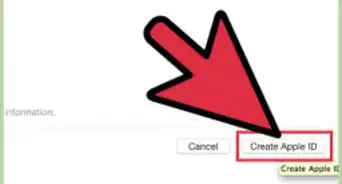
2Click or tap the link to redeem the gift in the email. If the email is not associated with an Apple ID, you'll be prompted to create one or sign in.Advertisement
-
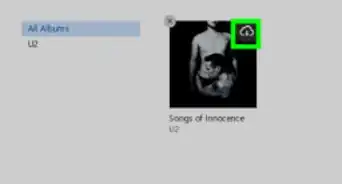
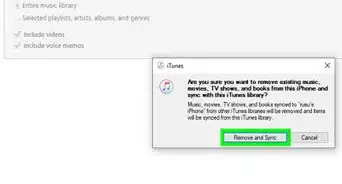
3Confirm in the pop-up that you want to redeem your gift. Once you click the link in your email, the gifted item will open in iTunes on your computer, phone, or tablet. You'll need to click or tap to confirm that you're redeeming your code before you'll have access to that gift.[1]Advertisement


Method 2
Method 2 of 4:Redeeming a Physical Gift Card on iPhone or iPad
-
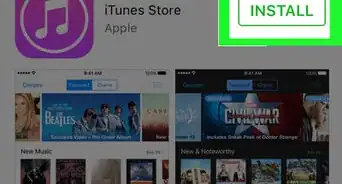
1
-
2Tap the Today icon. This is usually the first icon on the left of the menu at the bottom of your screen.
-
3Tap your profile picture. You'll see this in the upper right corner of your screen.
-
4Tap Redeem Gift Card or Code. This is usually in the second grouping of the menu.
- Sign in with your Apple ID if prompted.
-
5Enter the gift card's code. You can use the camera on your iPhone or iPad to take a picture of the gift card's code by clicking Use Camera. You'll want to follow the on-screen instructions to completely capture the code on the gift card.
- You can also enter the card's code manually. This is the 16-digit code you'll find on the back of the card that generally starts with "x."[2]
-
6Tap Done. You'll be directed back to the main screen of the App Store as your credit is applied.Advertisement


Method 3
Method 3 of 4:Redeeming a Physical Gift Card on Android
-
1Open Apple Music. You can find this music note app icon on your Home screens, in the app drawer, or by searching.
- If you don't have Apple Music, you can download it for free from the Google Play Store.
- If you have an Android phone or tablet, you can still redeem iTunes gift cards by redeeming them for Apple Music subscription time.
-
2Tap ⋮. You'll find this in the top right corner of your screen.
-
3Tap Account. If you are not already logged in with your Apple ID, tap Settings' to sign in. Enter your Apple ID and password, then tap the back arrow to return to the main page to tap ⋮ again.
- Once signed in, you'll be able to tap Account from the ⋮ menu.
-
4Tap Redeem Gift Card or Code. This is usually the first listing you'll see under "Subscription."
-
5Enter the code on your gift card. This code is usually 16-digits long and starts with an "X."
-
6Tap Redeem. You might be prompted to enter the subscription period you want to be applied to the card, but if you don't choose a specific subscription length, Apple Music will charge the gift card until it's empty.Advertisement


Method 4
Method 4 of 4:Redeeming a Physical Gift Card on a Computer
-
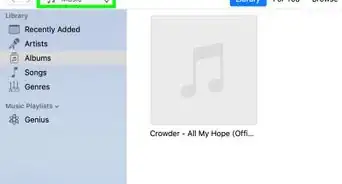
1
-
2Go to your account. In the App Store, you'll need to sign in with your Apple ID, then click your name in the lower left corner of the app window, then click Redeem Gift Card.
- If you're using iTunes, click the Account tab then Redeem. You'll then be prompted to sign in so you can redeem the gift card.
-
3Enter the gift card's code. You can use the camera on your computer to take a picture of the gift card's code by clicking Use Camera. You'll want to follow the on-screen instructions to completely capture the code on the gift card.
- You can also enter the card's code manually. This is the 16-digit code you'll find on the back of the card that generally starts with "x."[3]
-
4Click OK. You'll be directed back to the main screen of iTunes as your credit is applied.Advertisement



References
About This Article

1. Open your email.
2. Click or tap the link to redeem the gift in the email.
3. Confirm in the pop-up that you want to redeem your gift.