X
This article was co-authored by wikiHow Staff. Our trained team of editors and researchers validate articles for accuracy and comprehensiveness. wikiHow's Content Management Team carefully monitors the work from our editorial staff to ensure that each article is backed by trusted research and meets our high quality standards.
This article has been viewed 6,075 times.
Learn more...
Kindle is an e-book reader service offered by Amazon that lets people access their favorite books on the go. Most people use a special Kindle reader made by Amazon, but it's also possible to read Kindle books on an Android smartphone by using the Amazon Kindle app.
Steps
Part 1
Part 1 of 3:Installing the Amazon Kindle App
Part 1
-
1Open the Google Play Store. This will have a white icon with a blue, green, orange, and red arrow in it that is usually found on your phone's home screen.
-
2Search for the Amazon Kindle app. You can find it by typing its name into the at the top of the screen.Advertisement
-
3
-
4Select Install. This will install the Amazon Kindle app on your Android device.Advertisement


Part 2
Part 2 of 3:Buying Kindle Books
Part 2
-
1
-
2Log in to your Amazon account. If you don't have an Amazon account, simply set up an account with a valid email and password by selecting Create an Amazon Account on the page asking for your login information.
-
3Select a title from your recommendations. Simply tap a book's cover to access options for that title.
- You should also be able to tap on the search bar at the top of the page to search for a specific book to download.
-
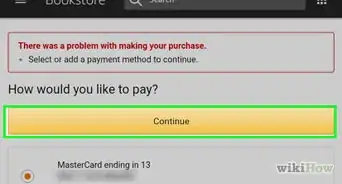
4Tap Buy Now With 1-Click. This will let you purchase the book so you can add it to your Kindle library.Advertisement


Part 3
Part 3 of 3:Accessing Your Kindle Books
Part 3
-
1Open the Amazon Kindle app.
-
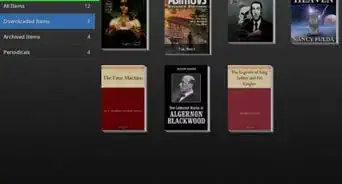
2Tap Library in the menu at the bottom of the screen. This will pull up a page displaying all the e-books you've purchased and saved in your Kindle account.
-
3Select the book you want to read. Tap on the book's cover to pull up the e-book reader and swipe right to flip forward through the book's contents.
- You can annotate the e-book by pressing and holding until a word is highlighted, then dragging the cursors that pop up to select how much text to highlight.
Advertisement




About This Article

wikiHow Staff
wikiHow Staff Writer
This article was co-authored by wikiHow Staff. Our trained team of editors and researchers validate articles for accuracy and comprehensiveness. wikiHow's Content Management Team carefully monitors the work from our editorial staff to ensure that each article is backed by trusted research and meets our high quality standards. This article has been viewed 6,075 times.
Co-authors: 3
Updated: March 18, 2019
Views: 6,075
Categories: Amazon Kindle
Advertisement