This article was written by Travis Boylls. Travis Boylls is a Technology Writer and Editor for wikiHow. Travis has experience writing technology-related articles, providing software customer service, and in graphic design. He specializes in Windows, macOS, Android, iOS, and Linux platforms. He studied graphic design at Pikes Peak Community College.
The wikiHow Tech Team also followed the article's instructions and verified that they work.
This article has been viewed 4,599 times.
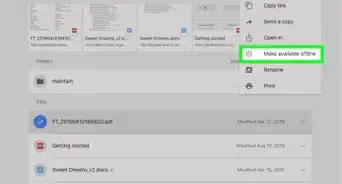
This wikiHow teaches you how to disable downloading, printing, and copying on Google Drive files using the Google Drive website on an iPhone or iPad. The Google Drive app doesn't give you the option to disable downloading when you share files, however, you can use the Google Drive website on Safari in desktop mode to disable the downloading of shared files.
Steps
-
1Open Safari and go to https://drive.google.com. It's the blue icon that looks like a compass, usually located in the dock at the bottom of your home screen. Then tap the top address bar and type in https://drive.google.com and press Go on the keyboard.
-
2Tap . It's the share icon that resembles an arrow pointing upwards out of a box.
- If you don't see the share icon, make sure you are at the top of the Google Drive homepage.
Advertisement -
3Tap Request Desktop Site. It's the icon that looks like a computer monitor.
- You may have to swipe left on the bottom row of options in the share menu to see the "Request Desktop Site" option.
-
4Tap Go to Google Drive and log in. It's the blue button on the page. Enter the email address and password associated with your Google account.
-
5Tap the file. The file will be highlighted in blue when selected.
- You can pinch to zoom in when in desktop mode to see the options more clearly.
-
6Tap the "Link Sharing" icon. It's the icon that resembles a chain link at the top of the page. This opens a small pop-up window.
-
7Tap Sharing settings. It's at the bottom of the pop-up window.
-
8Tap Advanced. It's in the bottom-right of the pop-up window.
-
9Tap the checkbox for "Disable options to download, print, and copy for commenters and viewers". It's the last option at the bottom of the window. A checkmark will appear when the option is enabled.
-
10Tap Save changes. It's the blue button at the bottom-left of the pop-up window.
-
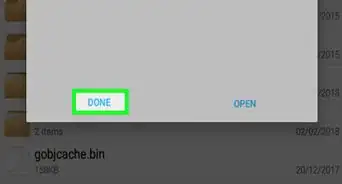
11Tap Done. This prevents shared users from downloading and copying your file while still giving them access to view it.Advertisement




About This Article