X
This article was written by Nicole Levine, MFA. Nicole Levine is a Technology Writer and Editor for wikiHow. She has more than 20 years of experience creating technical documentation and leading support teams at major web hosting and software companies. Nicole also holds an MFA in Creative Writing from Portland State University and teaches composition, fiction-writing, and zine-making at various institutions.
This article has been viewed 4,613 times.
This wikiHow teaches you how to upload a panoramic photo to Instagram by breaking it into squares. You can accomplish this on an Android with a free app called PanoramaCrop.
Steps
-
1Install PanoramaCrop for Instagram from the Play Store. This is a free and well-rated app that preps panoramic photos for an Instagram posts.
- Some other apps that work similarly to PanoramaCrop for Instagram are PanoSwipe and InstaPano.
-
2Open PanoramaCrop. It’s the blue circle with 3 white squares inside. You’ll find it in the app drawer.
- If you’re using a different app for posting panoramas to Instagram, open that now.
-
3Tap PICK FROM GALLERY. It’s at the center of the screen. You’ll need to have the panoramic shot already saved to your gallery, as this app is just for cropping the photo to an Instagram-friendly format.
-
4Tap the panoramic image. This opens the image in the editor.
-
5Select the number of images you want to create from your panoramic shot. You’ll be breaking the panoramic shot into squares that your followers can swipe through. Select anywhere from 2 to 10 squares.
- The number of boxes in the preview changes with your selection.
-
6Click the square icon at the bottom-left corner of the screen. This allows you to adjust the photo.
-
7Adjust the photo to fit within the boxes. Swipe the dial below the image to zoom in or out—make sure you can get the whole image within the boxes. These boxes are how the app will crop the photo.
-
8Tap the check mark. It’s at the top-right corner of the screen.
-
9Swipe through the preview images. When you upload to Instagram, it will look similar to this preview.
- If you’re not satisfied, tap the left-pointing arrow at the top-left corner of the screen to go back to the editor.
-
10Tap the check mark when you’re finished. It’s at the top-right corner of the screen. PanoramaCrop will now break the image into squares. A confirmation message will appear when the process is complete.
-
11Tap OPEN INSTAGRAM on the “Success” pop-up. This opens a new post screen.
-
12Tap the Multiple Photo icon. It’s the three overlapping squares at the bottom-right corner of the post preview.
-
13Tap each of the images that make up the panorama. You’ll notice that as you tap each image, a number will appear at its top-right corner. Be sure to tap the images in order so the panorama is correct.
-
14Tap Next. It’s at the top-right corner of the screen.
-
15Select a filter for the images (optional) and tap Next. A filter can be applied to all of the images in the panorama, but it’s not required.
-
16Add a post description (optional). If you want to include text with your panoramic photo, type it into the box at the top of the screen.
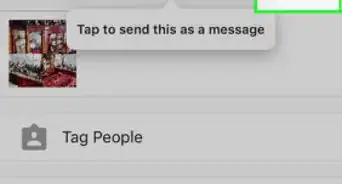
- To tag someone in the photo, tap Tag People, then follow the on-screen instructions to tag someone.
- To add the photo’s location, tap Add Location, start typing the name of the place where the photo was taken, then tap it when it appears in the search results.
-
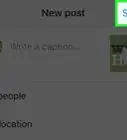
17Tap Share. Your new post now appears in your feed. To view the entire panorama, swipe left across the post to access the next square.




About This Article

Nicole Levine, MFA
Tech Specialist
This article was written by Nicole Levine, MFA. Nicole Levine is a Technology Writer and Editor for wikiHow. She has more than 20 years of experience creating technical documentation and leading support teams at major web hosting and software companies. Nicole also holds an MFA in Creative Writing from Portland State University and teaches composition, fiction-writing, and zine-making at various institutions. This article has been viewed 4,613 times.
How helpful is this?
Co-authors: 2
Updated: June 11, 2018
Views: 4,613
Categories: Instagram Photos | Instagram Posts