This article was written by Nicole Levine, MFA. Nicole Levine is a Technology Writer and Editor for wikiHow. She has more than 20 years of experience creating technical documentation and leading support teams at major web hosting and software companies. Nicole also holds an MFA in Creative Writing from Portland State University and teaches composition, fiction-writing, and zine-making at various institutions.
This article has been viewed 24,809 times.
This wikiHow teaches you how to watch your iTunes movie purchases on a television screen.
Steps
Method 1
Method 1 of 2:Using iTunes (Connecting TV to Computer)
-
1Connect the TV to your computer. Use an HDMI cable to connect the TV to the computer. In essence, you’ll now be using the TV as a monitor.
-
2Change to the HDMI channel on your TV. The steps to do this vary by TV.
-
3Open iTunes. It’s white, pink, blue, and purple music note icon on the Dock on a Mac. If you’re using Windows, you’ll find iTunes in the All Apps area of the Start menu.
-
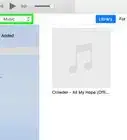
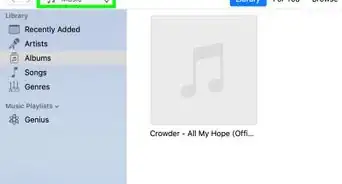
4Select Movies from the drop-down menu. It’s near the top-left corner of iTunes.
-
5Click the movie you want to watch. Details about this movie will appear.
-
6Hover the mouse over the cover image. A play button will appear.
-
7Click the play button. The movie will now display on your television.


Method 2
Method 2 of 2:Using an Apple TV





About This Article

1. Connect the TV to the computer with an HDMI cable.
2. Switch to the HDMI channel.
3. Open iTunes on the computer.
4. Open your movie library and select the movie.
5. Click the play button.