This article was written by Darlene Antonelli, MA. Darlene Antonelli is a Technology Writer and Editor for wikiHow. Darlene has experience teaching college courses, writing technology-related articles, and working hands-on in the technology field. She earned an MA in Writing from Rowan University in 2012 and wrote her thesis on online communities and the personalities curated in such communities.
This article has been viewed 25,939 times.
WRF files are video and/or audio recordings of Webex meetings you can play back on your computer. This wikiHow teaches you how to open WRF files on Windows or macOS using Cisco's Webex Player.
Steps
-
1Go to https://www.webex.com/video-recording.html in a web browser. Webex is a Cisco product created to record meetings and teamwork. If you (or someone else) saved a Webex meeting in the WRF format, you can rewatch the recording using Cisco's free Webex Player.
-
2Scroll down and click Windows or Mac OSX under "WRF." It's atop the center column in the table. This downloads the installer file to your computer.
- You may have to select a download location and click Save to start the download.
Advertisement -
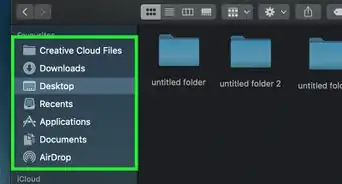
3Double-click the installer you downloaded. It'll be called atrcply.msi on Windows and webexplayer_intel.dmg on macOS. You’ll usually find it in the Downloads folder.
-
4Follow the on-screen instructions to install Webex Player. If you're using Windows, follow the install wizard. If you have a Mac, drag the Webex icon onto the Applications folder.
-
5Open Webex Player. You’ll find this either in your Start menu (Windows) or Applications folder (macOS).
-
6Click the open folder icon. It's on the left side of the window. Your file browser will pop-up.
-
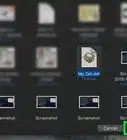
7Find and double-click your .WRF file. This opens the video for playback in Webex Player.Advertisement



About This Article

1. Go to https://www.webex.com/video-recording.html.
2. Click the Windows or Mac OSX download under .WRF File.
3. Open the .msi file or mount the .DMG file and follow the installer wizard.
4. Open Webex Player.
5. Click the open folder icon.
6. Navigate to and double-click the .WRF file.