X
This article was written by Jack Lloyd. Jack Lloyd is a Technology Writer and Editor for wikiHow. He has over two years of experience writing and editing technology-related articles. He is technology enthusiast and an English teacher.
This article has been viewed 596,299 times.
This wikiHow teaches you how to sign into an online server in the Minecraft Pocket Edition app. In order to do so, you'll need an Xbox LIVE gamertag.
Steps
Part 1
Part 1 of 3:Setting Up Your Game
Part 1
-
1Open Minecraft PE. Its icon resembles a block of dirt with the word "Minecraft" displayed across it.
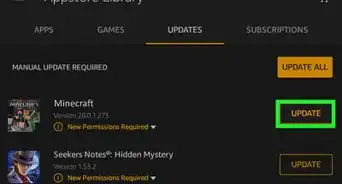
- If you don't have Minecraft PE yet, first download it from the App Store (iPhone) or the Google Play Store (Android). It costs $6.99 USD to download.
-
2Tap Sign In For Free. This button is in the bottom-right corner of the screen; doing so will prompt you to enter your Xbox LIVE gamertag information.
-
3Type in your Xbox LIVE email address. You'll enter this in the text field on this page.
- If you don't have an Xbox LIVE gamertag, first go to the Xbox LIVE website and create a gamertag.
-
4Tap Next. It's near the bottom of the page.
-
5Type in your password. Enter it in the text field that's in the middle of the page.
-
6Tap Sign in. It's near the bottom of the page.
-
7Tap Let's play. This will take you to the main menu.
-
8Tap Play. It's near the top of the page. From here, you can join an existing server if you have the appropriate information, or you can create your own server to which you may invite friends.


Part 2
Part 2 of 3:Signing into a Server
Part 2
-
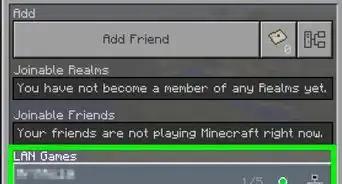
1Tap Friends. This tab is in the top-right corner of the screen.
-
2Tap the "Add External Server" button. It's the multiple boxes icon on the far-right side of the "Add Friend" button.
-
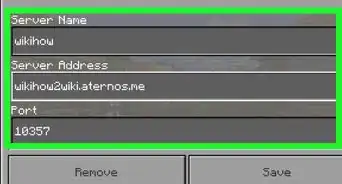
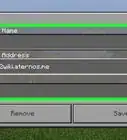
3Enter the server's information. You'll need to type in the server's name and the server's address in the top and middle fields, respectively.
- There is a third field on this page labeled "Port", but Minecraft PE will fill it in automatically for you.
- If you don't have a server to user here, you can also look for public servers to join. Such servers post their names, IP addresses, and any other information needed to log into the server.
-
4Tap Save. It's in the bottom-right corner of the "Add External Server" form. Doing so will save the server to a list on the "Friends" tab.
- You can also tap Play in the bottom-left corner of this page to jump right into the server.
-
5Tap the server's name. If all of the information you added is correct and the server is online, doing so will load the server. This process may take a few minutes.


Part 3
Part 3 of 3:Creating a Server
Part 3
-
1Tap Create New. This option is at the top of the "New World" tab.
-
2Tap Generate Random. This option allows you to create your own world for up to four friends to join; however, all of your friends must be using the same Wi-Fi network as you.
-
3Tap Multiplayer. This tab is in the bottom-left corner of the screen.
- You'll also see a World tab in the bottom-left side of the screen; you can customize your world's settings from here.
-
4Slide the "Multiplayer Game" switch to the "On" (right) position. This option is near the top of the screen.
- If the switch is already on, you'll see two options entitled "Broadcast to Xbox Live" and "Broadcast to LAN" listed on the page in addition to the "Multiplayer Game" option.
-
5Tap Play. It's in the middle-left side of the screen. Your custom game will launch.
-
6Tap the pause button. This button is at the top of the screen.
-
7Tap Invite to Game. It's in the upper-right corner of the pause screen.
-
8Tap the name of each friend you wish to invite. You may invite up to four people (not including yourself).
- If you don't have friends yet, you can tap Add Friend in the bottom-left corner of the screen to add people's gamertags to your profile.
-
9Tap Send # Invites. It's in the bottom-right corner of the screen. Once your friends join your server, you'll be able to play online with them.
- The "#" part reflects the number of friends you invite; for example, if you invite three friends, the button will say Send 3 Invites.


Community Q&A
-
QuestionHow do I connect with my cousin from far away?
 Community AnswerThe easiest way is to join the same server and meet there, as described above. If you want a private world for just you and your cousin, you'll need to create your own server, which can be a little complicated.
 -
QuestionI don't understand why it keeps asking me to login. What am I supposed to do?
 Community AnswerIt wants to make sure it's you and not someone else, and all your ranks and stuff are protected under that password. If you forgot, maybe there's a password program with the server, if not, just change your username.
 -
QuestionWhat could be wrong if my Pocket Edition is up to date and the server is online, but I can't connect to it?
 Community AnswerChange your username to a name no one else is likely to have, without using any special characters or spaces. Make sure the server is for PE, not PC edition. If your internet connection is slow, move to a spot with a better WiFi signal. If none of that works, try restarting your device.
 -
QuestionDo I need WiFi to play online or can I just play with my Internet from my phone?Community AnswerYou should be able to use the internet from your phone.
-
QuestionThe server asks me for my password but doesn't accept my Mojang account password. What's going on?Community AnswerSome servers give you a password-protected account that is not tied to your Mojang account. The first time you log in, type "/register" followed by any password into chat. Then you'll need to type in "/login" followed by that exact password every time you join the server. Your password must be unique on the server, so avoid common passwords.
-
QuestionCan I make a server for more than one person?Community AnswerYes. If you created a server with PocketMine or a similar application, just share your server's IP address and port with your friends and they can join your server just like any other.
-
QuestionHow can I get more than five players?
 Community AnswerYou need to enable cheats on that world first. Then, open your chat and use /setmaxplayers #* with * being the number of players you want to have. (The limit is 30.)
 -
QuestionCan I play on multiplayer without WiFi?Community AnswerNo, multiplayer games require an Internet connection.
-
QuestionHow do I become unstuck in Minecraft?Community AnswerYou may need to enter a personal password to enter the server. This is accomplished by tapping the chat button, which resembles a speech bubble, at the top of the screen and then typing in a password of your choice twice. After doing so, you should be able to roam about the world freely.
-
QuestionMy brother and I want to play Minecraft pocket edition together. We are on the same WiFi, but it says you have to have an Xbox Live account. How do I play with him without an Xbox account?Community AnswerEven though it says Xbox Live, it's really asking for any Microsoft account. This includes Xbox Live, Skype, Microsoft, OneDrive, and Outlook. If you have an account with any of these, you can use it to log in on your Xbox. If you don't, then unfortunately you will have to create one.
Warnings
- Public servers are very rarely moderated, so the content you experience on them will vary widely.Thanks!